
PDF editor
Edit PDF text and images, wrap text around pictures, and recognize scanned English text. Follow desktop and mobile steps, previews, and export checks.
Open PDF editorWhen to use it
Update a short label in a text-based PDF, insert a logo, add review notes, and download an edited copy directly in your browser.
Change a draft heading without rebuilding the document
The three-page practice PDF contains selectable English text and a review checklist.
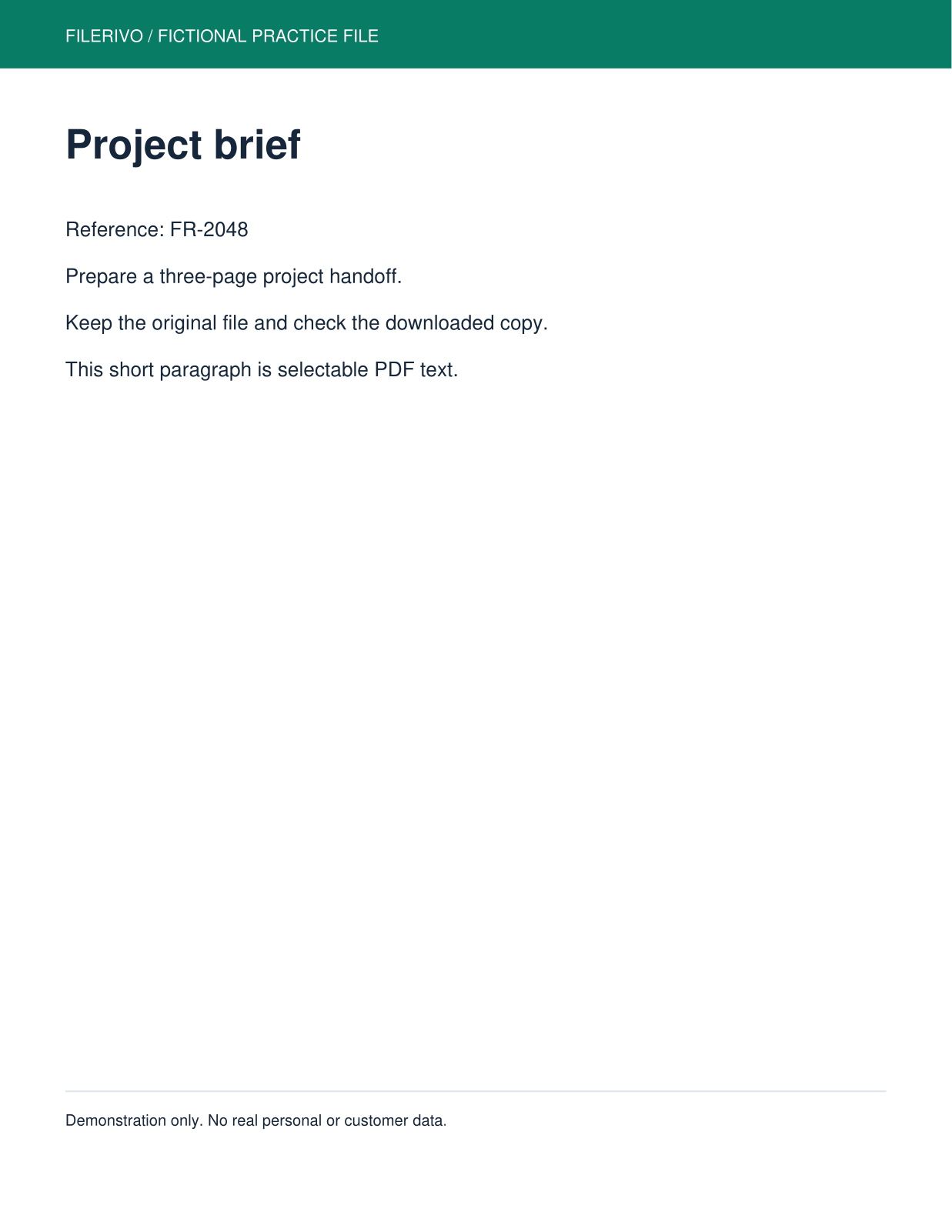
Filerivo-created demonstration files. No real personal or customer data. Settings below are a recipe, not an automatic preset.
- Open the practice PDF and choose Edit PDF.
- Click the short “Project brief” heading. Replace it with “Project notes”, finish the edit, choose Apply, and use Preview.
- Download and open the downloaded copy.
- Expected result
- An edited PDF copy with the replacement heading; the original download stays unchanged.
- Check before sharing
- Compare all three pages. Check that the replacement fits and the checklist remains readable.
How to do it
- Open an unprotected PDF, up to 50 MiB and 100 pages. Keep the original file.
- Click supported text or an image to open its editing controls. Select words in Edit PDF to replace a smaller text range. Click outside to save valid text and deselect; clicking another object switches to it.
- Use Add text, Insert image, Highlight, Shape, Draw, or Sign. Drag objects to move them with live previews and use the eight outer handles to resize. Hover over or open Shape in the toolbar to choose rectangle, ellipse, triangle, diamond, line, or arrow. Right-click an editable object for Delete, Bring to front, or Send to back. Send to back places it behind the other page objects, including text. Right-click an image and choose Wrap text around image to flow editable text boxes around it with a 6 pt margin. Supported original paragraphs in affected text columns become editable boxes in the same Undo step, using an embedded replacement font. Following paragraphs flow down to make room while the footer stays clear. Text must fit on the page; move or shrink the image if there is insufficient room. Use Turn off text wrapping to restore full-width lines. Hand dragging pans the page; a click on an object opens editing from any tool.
- Use page thumbnails to rearrange, rotate, or exclude pages. Undo and Redo help revise changes. After arranging the pages, choose Apply, then Preview to review each included page.
- Select an image, text, shape, highlight, drawing, or typed signature and adjust Opacity in the Format panel. Supported original text, images, and shapes have their own Opacity slider in Edit original content. Values range from 0% (invisible) to 100% (opaque). Finish the edit, then choose Apply, Preview, and Download in the document bar. Invisible objects remain in the file and can be selected again from the object list.
- Use Format text in the right panel for bold, italic, underline, superscript or subscript, bullet or numbered lists, and left, center, right, or justified alignment. Line spacing, paragraph gap, text width percentage, and character gap update the page preview. Lists use one entry per explicit paragraph; justification spreads words on wrapped lines while leaving the last line left-aligned. Select words to format a smaller range, or apply formatting to the whole text box. Advanced formatting converts supported original text into an editable text box; Undo restores the original.
- On mobile, Text and a chosen shape appear on the page ready to move and resize. Tap Edit to change text. The Shapes menu includes fill color and border opacity; the shape editor also has dimensions and stroke width. On desktop, use the Format panel above Format Painter for size, color, fill, and opacity.
- For scanned or unsupported visible text, open Recognize text (mobile: More). Select one paragraph, run English recognition, review the wording, and choose text size. Pick a solid background or Repair from surroundings; preview and compare a repair before applying. Repairs estimate missing pixels, so gradients work better than detailed photographs. The result is an editable text box; use Wrap on an image to reflow supported upright text. Original content remains underneath, so this is not secure redaction.
- Choose Apply to prepare your edited copy, Preview to inspect it, then Download to save the same PDF. Edits remain in this tab until you download them; refreshing clears the workspace.
Apply, preview and download
Finish your edits, then choose Apply in the document bar. Preview opens those prepared PDF bytes; Download saves the same copy. Both actions become available after Apply. Any text, shape, page or image edit requires Apply again.
Use the advanced controls
Use Edit PDF for supported original objects. Click text to edit the displayed text run directly on the page, or drag across words to replace only that selection. The editing area follows the selected text rather than the page-wide object box. Click outside once or press Enter to finish an edit; Escape cancels. Drag the Move text handle to reposition text while editing. If an edit cannot be applied, an outside click still closes editing and keeps a recoverable draft. The active editing tool stays available for the next object.
Click an editable object to select it, then drag to move or drag one of the eight edge/corner handles to enlarge or shrink it. Resize handles remain available while editing text. Images keep their proportions; hold Shift to stretch. Added text boxes scale their font live while you drag. Supported original PDF text, images, and vector shapes show a live resize preview and apply on release. On desktop, choose rectangle, ellipse/circle, triangle, diamond, line, or arrow from Shape, then drag on the page. On mobile, choosing a shape inserts it immediately; select it to move, resize, or change its fill and border. Exported vector shapes can be selected, moved, resized, or deleted after reopening the PDF. Undo restores the previous size. On desktop, choose Add text and drag a rectangle, then type inside the empty box. On mobile, Text inserts a box immediately; tap Edit to enter wording, then move or resize it. Text wraps within the box; Enter applies the edit; Shift+Enter creates a new line. Font, size, color, and opacity changes preview as you adjust them. Click outside to finish, or Escape to cancel. Resize the box or reduce the font size if the text does not fit. Added text, images, highlights, shapes, drawings, and typed signatures can also be selected and moved. Use the object controls to edit, duplicate, delete, or finish placement. Select an inserted or supported original text/image/shape object and press Delete, or right-click it and choose Delete. Delete or Backspace removes selected PDF words, including a selected range in the on-page editor. While typing within a field, unselected character deletion behaves normally. Undo restores deleted objects. Hand mode pans on drag, while an object click opens its controls.
Use the zoom controls, Fit page, or Fit width to inspect details. Keep tool active supports repeated additions. Undo and Redo revise edits. Original text font, size, color, and opacity controls show the edited PDF as you adjust them; original image position and size fields also preview live. Original text styles apply to the supported text object, not individual character formatting. Press Enter to apply changes. No export preview is required to edit an object. Finish edits and choose Apply to prepare a PDF; Preview reviews those prepared bytes and Download saves the same copy. A finished on-page edit is not a saved download.
Check the preview and download
Previews render at higher pixel density and are scaled to fit the page. They do not restore detail missing from the original, and their display size does not change export dimensions. For encoded-output comparisons, check both visible detail and the reported size. Always open the downloaded file for a final check.
Know the limits
Original content editing supports top-level, unclipped text and image objects. The old 160-character and basic-Latin typing restrictions have been removed. Replacement text uses a built-in or embedded font; unsupported glyphs are reported without changing the original. Text must fit on the page, and original fonts are not preserved. Clicking a supported paragraph opens one wrapped text box with eight outer resize handles; nearby paragraphs stay separate. Enter or a click outside finishes editing. Whole-document reflow is not supported. Scanned or grouped visible text can be recognized in English and reviewed before an editable replacement is applied. Exact original font matching and faithful photo-background reconstruction are not guaranteed. Image insertion supports common formats including PNG, JPEG, WebP, HEIC, and TIFF up to 20 MiB; large images are resized for editing. Typed signatures are visible marks, not verified digital signatures. Highlighting, shapes, and deleting objects are not secure redaction. Export rebuilds pages and may not preserve forms, bookmarks, attachments, accessibility structure, or existing digital signatures. Check the downloaded copy before sharing.
Troubleshooting
The text cannot be selected
The page may be a scan, grouped object, or unsupported original content. In the editor choose Recognize text (mobile: More), select one paragraph, run English OCR, and review it. Choose a solid background or preview Repair from surroundings before applying. Repairs estimate missing pixels and may blur photos. Original content remains underneath; this is not secure redaction.
The replacement does not fit
Shorten the wording, reduce font size, or enlarge the supported text box. Check surrounding content and undo if it overlaps.
A black box is being used to hide information
Shapes and highlights are not secure redaction. Do not share a file containing sensitive text hidden only by an overlay.
Still stuck? Keep the original and note the tool, file type, approximate size and error message. Contact Filerivo with those details; do not email confidential files.