
Merge PDFs
Combine several PDFs in the file order you choose.
Open Merge PDFsWhen to use it
Put a cover letter, résumé, and supporting pages into one packet. Move the files into the right sequence before combining them.
Put a cover before a three-page brief
Use the one-page practice cover and the three-page practice document.
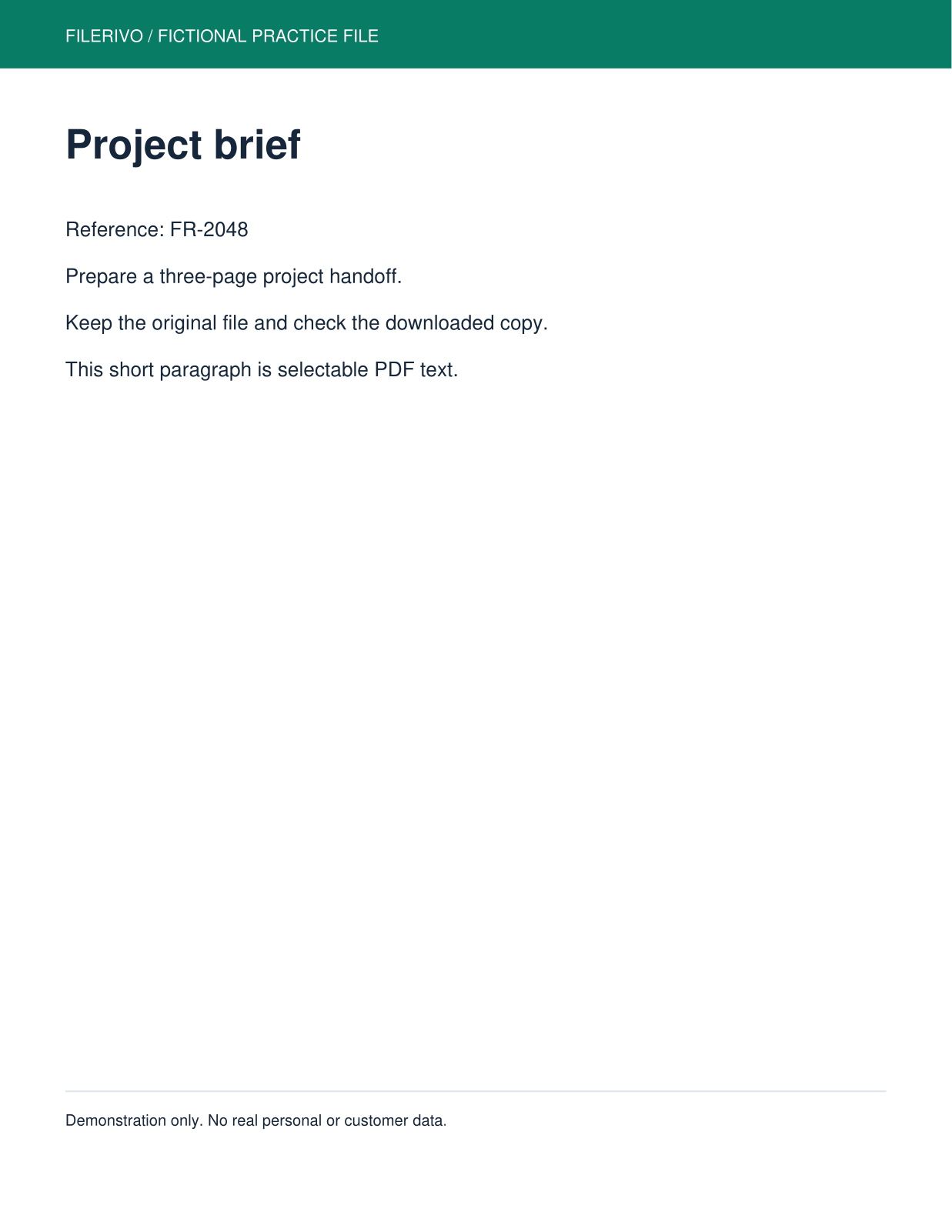
Filerivo-created demonstration files. No real personal or customer data. Settings below are a recipe, not an automatic preset.
- Select both PDFs and move the cover file before the document.
- For a page-level check, load Advanced visual page editor and keep all four pages included.
- Choose Apply, Preview, then Download and open the result.
- Expected result
- One four-page PDF: cover, Project brief, Review checklist, and Final handoff.
- Check before sharing
- Check all four headings in order. A repeated page means the same file or page was included twice.
How to do it
- Select two or more PDFs in Merge PDFs.
- Use the up and down controls beside each selected file to set the order.
- For up to 100 pages total, open Advanced visual page editor and load previews. Drag pages or use move buttons, exclude unwanted pages, and rotate them. Enable visual layout to override quick controls.
- Choose Apply, Preview, then Download the merged PDF. Open it and check the first page, last page, and page count.
Apply, preview and download
Choose Apply after selecting files and setting your options. Complete any required advanced recognition, review or workflow steps first. Apply prepares a result without downloading it. Choose Preview to review that prepared output. Navigate the actual generated PDF pages and check every affected page before saving. Choose Download to save the same generated file.
Preview and Download become available after Apply. Changing files, settings or visual edits requires Apply again. Content preview supports up to 100 MiB per output or archive entry; text and Word content have a 2 MiB preview limit and long text display is truncated. Keep originals and inspect the full download in its intended application.
Use the advanced controls
Advanced controls are shown dimmed before a file is selected. Add a supported file to activate them. Where a Load preview or Extract button is shown, use it first; enable the tool's advanced-download checkbox to apply those settings. Changing files or tools clears unsaved edits.
Load page previews to arrange individual pages across all selected PDFs. Each card identifies its source file and original page. Drag or use move buttons, rotate, and include or exclude pages; Reset layout restores source order, inclusion, and rotation.
Enable Use visual layout for download. Visual edits override the quick file order for output. At least one page must remain included, and the visual editor accepts at most 100 pages across all sources.
Check the preview and download
Previews render at higher pixel density and are scaled to fit the page. They do not restore detail missing from the original, and their display size does not change export dimensions. For encoded-output comparisons, check both visible detail and the reported size. Always open the downloaded file for a final check.
Know the limits
Merging does not edit the contents of the original pages. Keep the source files so you can change the packet later. A protected or damaged PDF may fail to open.
Watch the walkthrough
Follow the tool in action. The YouTube player loads only when you choose to load it.
How to Merge PDF Files into One
Combine PDFs in the order you choose, then check the merged document before sharing.
Watch on YouTubeTroubleshooting
Pages are in the wrong order
Quick mode follows the file list. If visual layout is enabled, that page arrangement overrides the quick file order.
A page is missing
Check the Include box on every intended page in the visual editor.
The visual editor rejects the total
Visual editing supports 100 pages across all source PDFs. Use smaller groups; do not assume splitting a large merge removes device memory limits.
Still stuck? Keep the original and note the tool, file type, approximate size and error message. Contact Filerivo with those details; do not email confidential files.