
Add/Remove PDF Watermark
Add a visible text label or select separate text watermarks to remove, with an actual edited PDF preview.
Open Add/Remove PDF WatermarkWhen to use it
Put a light DRAFT label on every page, then check that it does not hide important numbers.
Mark a practice brief as a draft
Use the three-page practice PDF.
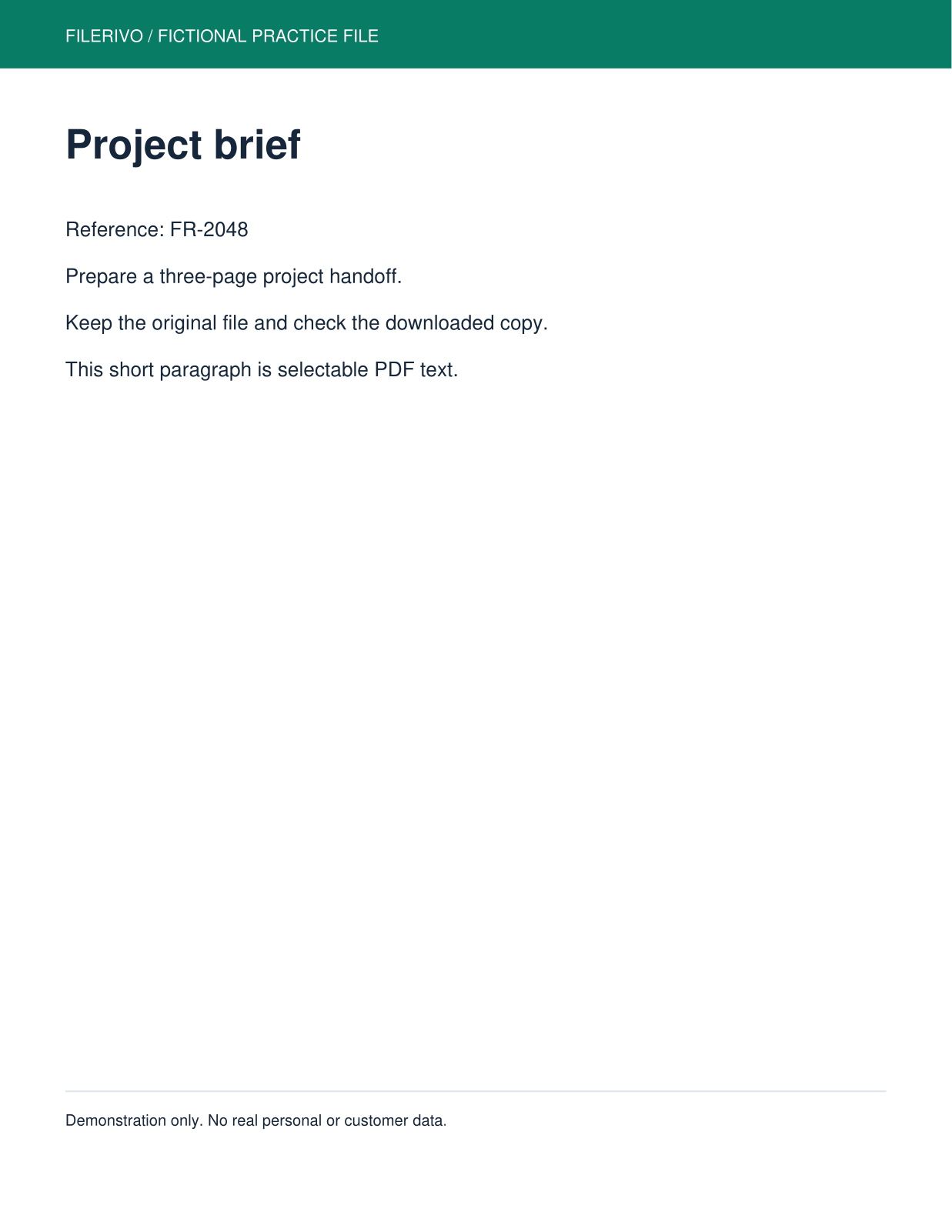
Filerivo-created demonstration files. No real personal or customer data. Settings below are a recipe, not an automatic preset.
- Enter DRAFT and load Advanced watermark positioning.
- Start with 36 pt text, 0.15 opacity and a straight angle. Place it inside the page away from the main text.
- Apply to all pages, enable visual positioning, inspect every page and choose Apply, Preview, then Download.
- Expected result
- A three-page PDF with a light visible DRAFT label on each page.
- Check before sharing
- Check both the short first page and the longer checklist. A watermark must not hide important wording.
How to do it
- Choose one PDF. Keep Add watermark to enter a label; quick mode applies it diagonally to every page at the selected opacity.
- Open Advanced watermark positioning and select Load positioning preview.
- Click or drag on the preview to place the text baseline. Adjust Left %, Baseline from top %, size, clockwise angle, text color, and opacity. Drag the round rotation handle above the watermark to slant it freely, or choose Slant up 45°, Straight, or Slant down 45°.
- Choose the preview page and whether to Apply to all pages. Enable Use visual positioning for download, inspect the preview, and choose Apply, Preview, then Download.
- For removal, choose Remove text watermark. The original page preview opens automatically. Leave Pages to search blank for all pages, or enter 2-4, 7. Optionally enter exact watermark text, then choose Find watermark text. Exact matching ignores case and extra spaces but must match a whole separate object.
- Select only the watermark objects you recognize. Nothing is selected automatically. The original preview outlines your selected text; suggestions can include actual document content. Choose Preview removal and switch between Original and After removal to inspect every affected page.
- Confirm that you reviewed the selected removals and edited PDF. Choose Apply in the main action row, Preview to review the prepared result, then Download. Changing the search, selection or action invalidates the prior removal preview. Keep the original.
Apply, preview and download
Choose Apply after selecting files and setting your options. Complete any required advanced recognition, review or workflow steps first. Apply prepares a result without downloading it. Choose Preview to review that prepared output. Navigate the actual generated PDF pages and check every affected page before saving. Choose Download to save the same generated file.
Preview and Download become available after Apply. Changing files, settings or visual edits requires Apply again. Content preview supports up to 100 MiB per output or archive entry; text and Word content have a 2 MiB preview limit and long text display is truncated. Keep originals and inspect the full download in its intended application.
Use the advanced controls
Advanced controls are shown dimmed before a file is selected. Add a supported file to activate them. Where a Load preview or Extract button is shown, use it first; enable the tool's advanced-download checkbox to apply those settings. Changing files or tools clears unsaved edits.
The actual PDF preview reflects the chosen text, baseline position, size, clockwise angle, color, and opacity. Sizes support 8-144 pt, angles -180 to 180 degrees, and opacity 0.05-1. Drag the text box to move it or any corner or side handle to resize it. Text keeps its proportions. Arrow keys move it; focus a resize handle and use arrow keys to resize. Drag the round rotation handle to slant the watermark, use a 45-degree preset, or enter an exact Rotation value. With the rotation handle focused, arrow keys turn by 1 degree; Shift turns by 15 degrees.
Apply to all pages uses the same relative placement throughout the document; otherwise only the preview page is edited. Check differently sized pages for overlap or boundary errors. Enable visual positioning to override quick placement and opacity.
Removal is a separate action. Find possible separate text watermarks, select only the intended objects, and compare Original with After removal on every affected page. The downloaded PDF is the exact reviewed result; changing the search, selection or action requires a new preview.
Check the preview and download
Previews render at higher pixel density and are scaled to fit the page. They do not restore detail missing from the original, and their display size does not change export dimensions. For encoded-output comparisons, check both visible detail and the reported size. Always open the downloaded file for a final check.
Know the limits
Visual positioning and removal support PDFs up to 100 pages. Removal handles separate, unclipped top-level text objects only; scanned text, outlined letters, images and grouped watermarks are not removed. Pages with more than 500 top-level objects are unsupported; more than 500 matches require a narrower search. Detection suggests rotated, translucent, or large repeated text; it cannot identify ownership or guarantee a match is a watermark. Text inside a larger paragraph is not partially removed. Modification can invalidate digital signatures. Watermark text is limited to 80 characters and supported basic Latin characters for the built-in font. Position is the text baseline, not the center of its bounding box. Visual mode rejects text outside page boundaries; move it inward or reduce its size. Turning off Apply to all pages edits only the preview page. Watermarking is a visible label and does not prevent copying, authenticate ownership, or redact underlying information.
Troubleshooting
The label is cut off
Position uses a text baseline. Move it inward, reduce size or adjust the angle until it fits.
Only one page has a watermark
Apply to all pages is off. Turn it on for repeated placement and review the result.
I need to hide confidential text
A watermark does not redact, prevent copying or authenticate ownership. Use a secure redaction workflow for confidential data.
No watermark text was found for removal
Enter the exact whole watermark text and check Pages to search. Scans, outlines, image watermarks, grouped content and partial paragraph matches are not supported. Nothing is removed when there is no match.
Download asks me to preview again
Search, selection or action changes invalidate the prior result. Choose Preview removal, inspect the edited pages and confirm your review before downloading.
Still stuck? Keep the original and note the tool, file type, approximate size and error message. Contact Filerivo with those details; do not email confidential files.