
Add/Remove page numbers
Add, remove, or replace page numbers with a preview.
Advanced options · choose a file to unlock
Give a PDF consistent page numbers
Choose the pages to number, set the starting value and placement, and compare the actual edited preview with the original before exporting.
Automatic removal can match other isolated numeric text in the selected area. Restrict detection carefully and inspect every affected page; scanned or grouped numbers may not be removable.
How to use Add/Remove page numbers
- Open Add/Remove page numbers and select one PDF. Quick mode numbers every page at the bottom center.
- Choose Add page numbers, Remove existing page numbers, or Remove existing and add new numbers in the advanced workspace. Load the preview. Leave Pages to edit blank for all pages, or enter ranges such as 2-4, 7.
- Removal automatically searches header and footer positions for page numbers. Review the list and preview. Adjust detection is available if needed. To add or replace numbers, choose the start, format, font, size, color, margin, and placement.
- Inspect the actual edited preview. Change Preview page to check another page. Enable Use this edited preview for download and choose Apply, Preview, then Download the PDF. Unselected pages remain in the file without new numbers.
Leave a cover unnumbered
Use the three-page practice PDF; treat the first page as a cover.
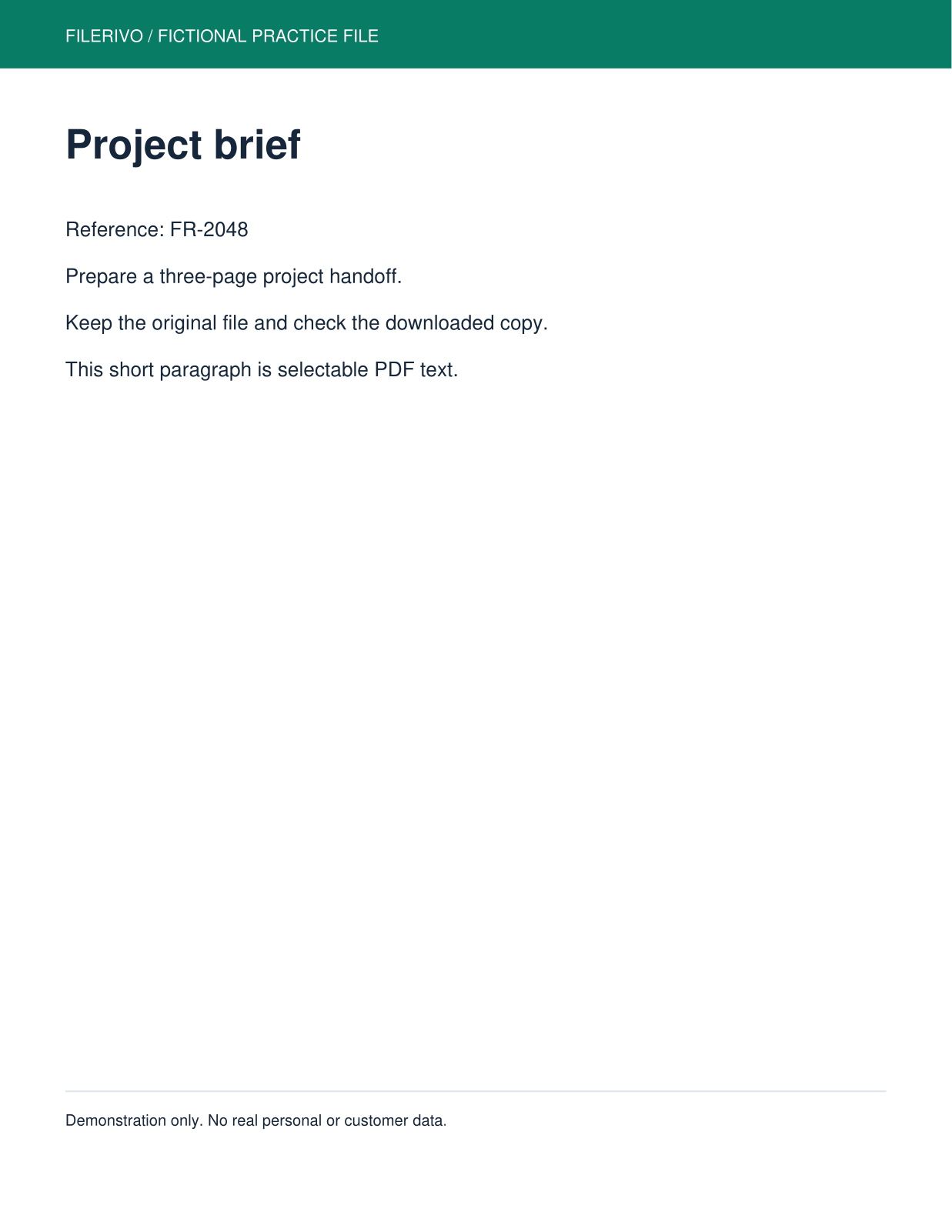
Filerivo-created demonstration files. No real personal or customer data. Settings below are a recipe, not an automatic preset.
- In advanced Add mode, set Pages to edit to 2-3.
- Choose consecutive numbering, start at 1, and place numbers at the bottom center with a clear margin.
- Preview pages 2 and 3, enable the edited preview for download, then choose Apply, Preview, and Download.
- Expected result
- Three pages remain: the cover has no new number, page 2 receives 1, and page 3 receives 2.
- Check before sharing
- Check the footer does not overlap existing content. Changing Preview page does not change Pages to edit.
Prepare and check your result
Choose Apply after selecting files and setting options. Preview inspects that prepared result; Download saves the same generated file. Apply again after changing files or settings. Keep your original and open important downloads in their intended application.
Tool-specific controls
Choose Add, Remove existing, or Remove and replace. Removal automatically detects isolated page-number text across header/footer positions; optional detection settings can restrict the search; review the removed-text list and preview. Scanned or grouped numbers are unsupported.
Select pages and one of six placements, then set font, size, color, edge margin, start number, numbering basis, and label format. Unselected pages remain in the PDF without a new number.
Consecutive mode counts selected pages; original-position mode offsets from their document positions. Preview page changes what you inspect, not what gets numbered. Refresh preview if needed, enable advanced numbering, and check for overlap on every selected page.
Limitations
Advanced numbering supports at most 100 pages, text sizes of 8-72 points, and margins of 0-144 points (72 points = 1 inch). Pages are numbered in document order even if ranges are entered out of order. With a start of 5, selected pages 2 and 4 receive 5 and 6 consecutively, or 6 and 8 in original-position mode. The of value is the final assigned consecutive number or the final document-position number, not always the page count. Automatic removal searches header/footer positions and uses page-number patterns and sequences. Adjust detection can restrict the search area. Scanned numbers, grouped text, and pages with more than 500 top-level objects are unsupported. Choose a narrow location and inspect every affected page; other isolated numeric text in that area can match. Original page content is not rasterized. Check the entire download before sharing.
Troubleshooting
Numbers skip unexpectedly
Choose consecutive numbering. Original-position mode uses the document positions instead.
An old number was not removed
Automatic removal cannot recognize scanned or grouped text. Inspect the removed-text list rather than assuming it succeeded.
Other numeric text disappeared
Use a narrower detection area, review each affected page, and keep the original. Do not export a removal you cannot verify.
Still stuck? Keep the original and note the tool, file type, approximate size and error message. Contact Filerivo with those details; do not email confidential files.