
Reorder PDF pages
Set a new page order and omit pages you do not need.
Include each page once in the order you want. You can leave out pages.
Advanced options · choose a file to unlock
Repair a PDF that arrived in the wrong order
Arrange the pages into the intended reading sequence, exclude anything unnecessary, and check the first and last page before saving a copy.
Rearranging pages does not edit their text. Keep the original: document-level features such as bookmarks or existing digital signatures may not survive reconstruction.
How to use Reorder PDF pages
- Choose one PDF. In quick mode, enter the new order, such as 3, 1, 2. Include each desired page once; omitted pages are left out.
- For visual editing, open Arrange page order and choose Load page order.
- Drag page cards or use Move earlier and Move later. You can also edit New page order; list each desired original page number once and omit any page you want to leave out.
- Choose Apply in the action row to prepare the order. Preview the generated pages, then Download the same PDF. Changes to the order require Apply again.
Move the handoff page to the front
Use the three-page practice PDF.
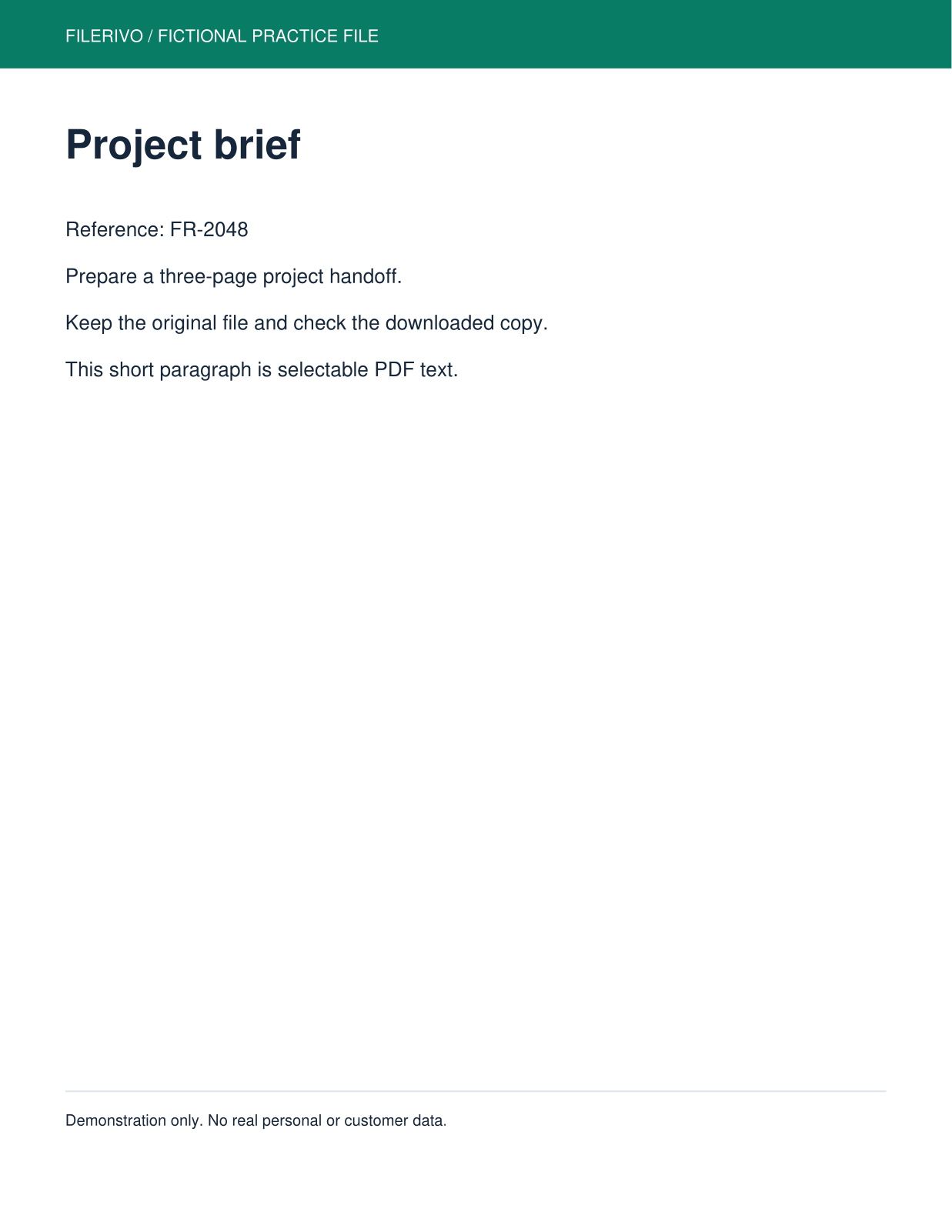
Filerivo-created demonstration files. No real personal or customer data. Settings below are a recipe, not an automatic preset.
- In quick mode enter 3, 1, 2 as the new page order.
- Or load visual previews and move Final handoff before Project brief, leaving all pages included.
- Choose Apply, then Preview to check the prepared order; Download saves that same PDF.
- Expected result
- A three-page PDF ordered Final handoff, Project brief, Review checklist.
- Check before sharing
- Check that all three headings occur exactly once and that the document still contains three pages.
Prepare and check your result
Choose Apply after selecting files and setting options. Preview inspects that prepared result; Download saves the same generated file. Apply again after changing files or settings. Keep your original and open important downloads in their intended application.
Tool-specific controls
Use New page order, drag page cards, or choose Move earlier and Move later. Numeric ordering is committed on change or by the main Apply action. There is no extra Apply page order button. Use the separate Rotate PDF tool to change page orientation.
Reset layout restores the original page order and includes all pages. Omit page numbers in New page order to leave pages out. Keep at least one page, then Apply again after making changes. Thumbnail resolution is for inspection; export copies original page content.
Limitations
Visual editing supports at most 100 pages total. Page references use original PDF positions rather than printed page labels. At least one page must remain included. Original page content is copied rather than exported from thumbnails. Rearranging pages does not edit their text, and document-level features such as bookmarks or existing digital signatures may not survive reconstruction. Keep your original.
Troubleshooting
Only some pages remain
Omitted page positions are excluded. Enter every desired page once.
The quick order was ignored
After loading page cards, New page order and the cards stay synchronized. List each desired original page number once, then choose Apply. Changing the order requires Apply again.
Bookmarks no longer point to the expected place
Document-level features may not survive reconstruction. Keep the original and verify navigation in the saved copy.
Still stuck? Keep the original and note the tool, file type, approximate size and error message. Contact Filerivo with those details; do not email confidential files.