
Compress PDF
Compare quality and file size before image-based PDF compression.
Pages are converted to images. Selectable text, links, forms, and accessibility information will be lost. Check the result before sharing.
Advanced options · choose a file to unlock
Try reducing a PDF for an upload limit
Keep the original, choose a quality and resolution, and compare the complete output size with the upload requirement before sharing.
This compression makes pages image-only. Selectable text, links, forms and accessibility structure are lost, and the file may become larger. Use it only when those tradeoffs are acceptable.
How to use Compress a PDF
- Keep a copy of the original PDF. Choose it in Compress PDF.
- Try a quality setting, choose Apply, inspect Preview, then Download if the copy is useful.
- For advanced control, open Advanced PDF compression preview. Choose JPEG quality and resolution, then build the complete preview. Compare original and compressed pages and check the actual total output size. Acknowledge the image-only output and enable advanced settings before downloading.
- Compare the new size and inspect every page. Keep the original if the result is larger or too blurry.
Compare a smaller copy of a scan
Use the image-only practice scan PDF; retain the original.
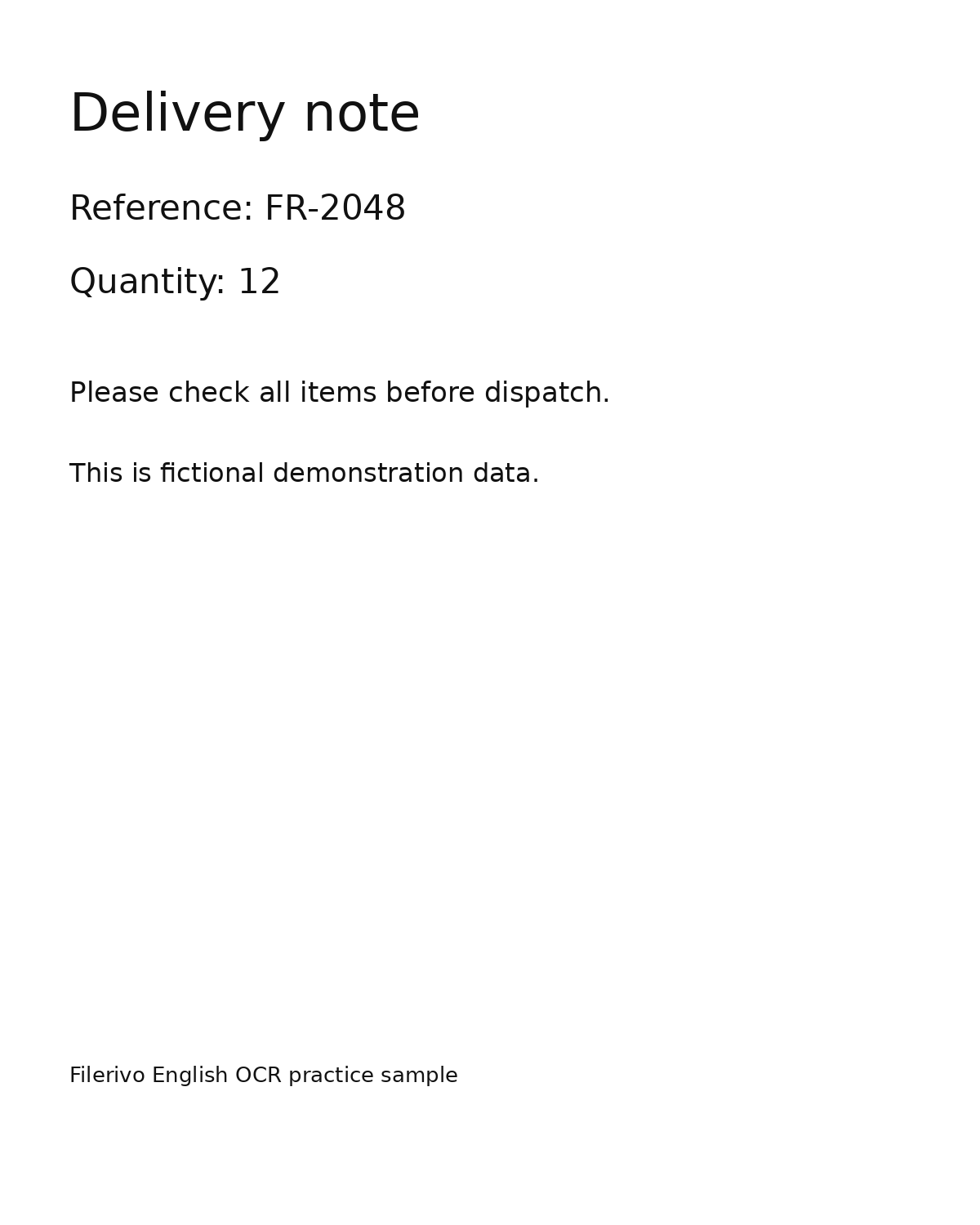
Filerivo-created demonstration files. No real personal or customer data. Settings below are a recipe, not an automatic preset.
- Open Advanced PDF compression preview. Start at 144 DPI and 75% JPEG quality.
- Build the complete preview and compare the smallest text and actual total PDF bytes.
- Acknowledge image-only output, enable advanced compression, then choose Apply, Preview, and Download only if the result is useful.
- Expected result
- An image-based PDF copy. It may be smaller or larger; this sample does not promise any particular saving.
- Check before sharing
- Compare actual byte sizes and read FR-2048 and quantity 12. Prefer the original if the copy is larger or less readable.
Prepare and check your result
Choose Apply after selecting files and setting options. Preview inspects that prepared result; Download saves the same generated file. Apply again after changing files or settings. Keep your original and open important downloads in their intended application.
Tool-specific controls
Choose JPEG quality from 10% to 100% and 72, 144, or 216 DPI. Build the complete compression preview to compare the original and compressed page and read the actual total PDF size. Preview page changes the page comparison, not the set of compressed pages.
Acknowledge the image-only output, then enable advanced compression settings. Build / update preview rebuilds after changes. Inspect fine print across all pages and retain the original if the result is too soft or larger.
Limitations
This tool rasterizes the pages. Selectable text, links, forms, and accessibility structure are lost, and the PDF may grow instead of shrinking. It supports at most 100 pages. Avoid this tool when text must remain searchable or editable.
Troubleshooting
The compressed PDF is larger
Some source PDFs are already efficient. Try lower DPI or quality, or retain the original.
Search or form fields stopped working
Compression rasterizes pages. Do not use this method when selectable text, forms or accessibility structure must survive.
The preview does not reflect a setting change
Build / update preview again before comparing and downloading.
Still stuck? Keep the original and note the tool, file type, approximate size and error message. Contact Filerivo with those details; do not email confidential files.