
PDF to Word
Turn selectable PDF text into an editable Word document.
Word output is text only. Layouts, tables, and images may not carry over. OCR can misread faint scans and handwriting.
Advanced options · choose a file to unlock
Turn PDF text into an editable Word draft
Choose the pages you need, extract their text, and review reading order and line breaks before exporting a Word document.
The Word output contains text; it does not reproduce the original tables, images, typography or page design. For scanned pages, choose English OCR and proofread the result.
How to use PDF to Word
- Choose a PDF in PDF to Word.
- If you cannot select words in the PDF, turn on Recognize scanned pages (English OCR). Leave it off for an ordinary text PDF.
- For more control, open Advanced Word review editor. Choose pages such as 2-4, 7 and choose selectable text or English OCR within the editor. Extract and review text to compare each selected source page with its editable text.
- Correct text, join single line breaks, restore the extracted version, or undo a helper. Choose a Word font, size, and whether to insert page breaks between selected pages. Enable Download reviewed Word instead of quick conversion and choose Apply, Preview, then Download before switching files or tools.
- Choose Apply, review the generated text with Preview, then Download the DOCX. Review every page, especially names, numbers, headings, and line breaks.
Extract editable wording from two pages
Use pages 1–2 of the selectable-text practice PDF.
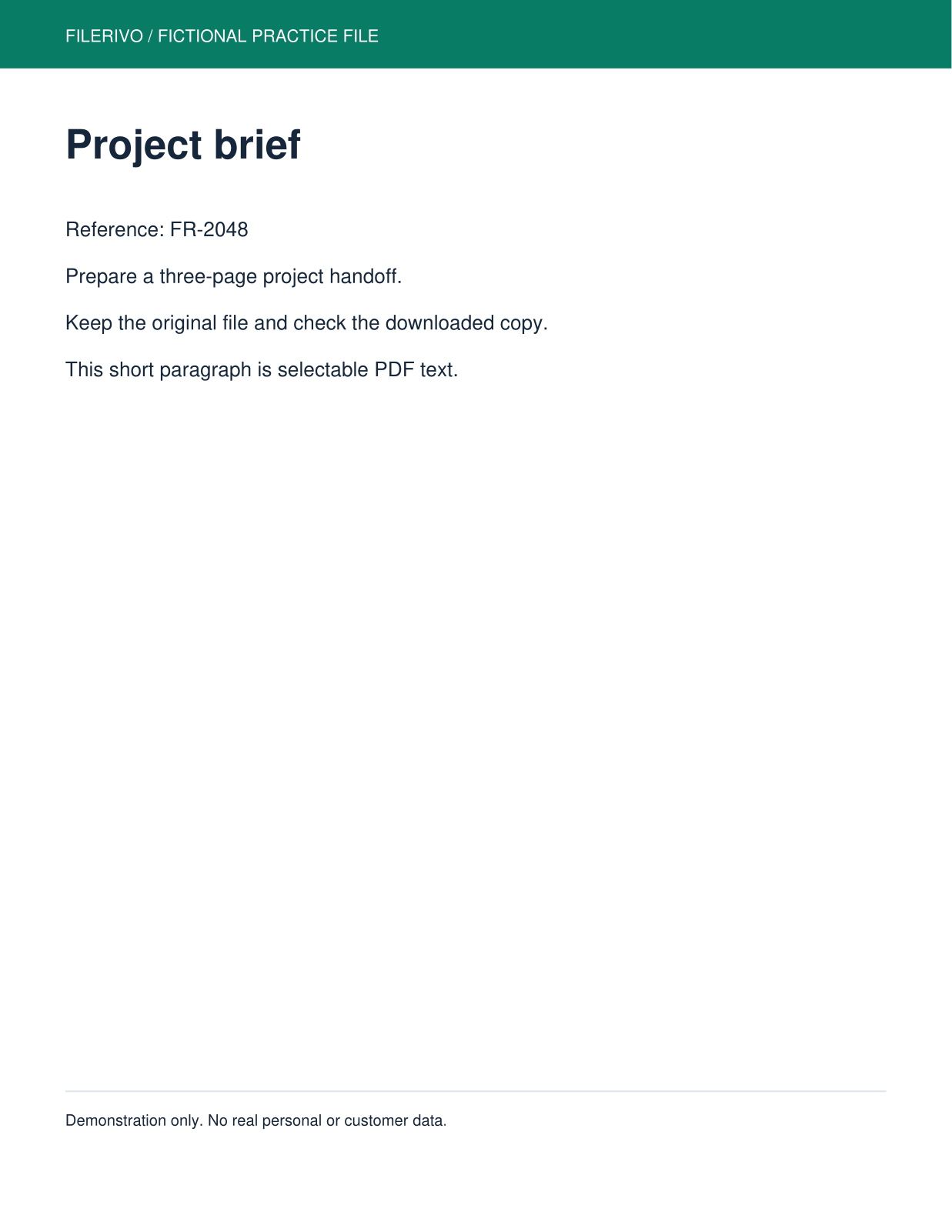
Filerivo-created demonstration files. No real personal or customer data. Settings below are a recipe, not an automatic preset.
- In Advanced Word review editor enter 1-2 and select selectable text, without OCR.
- Extract and review. Check headings and the reference code against the page previews.
- Choose 12 pt text, insert page breaks between selected pages, enable reviewed Word, and choose Apply, Preview, then Download.
- Expected result
- A DOCX containing editable text from the selected source pages. It will not reproduce the original page design.
- Check before sharing
- Open in Word or a compatible editor and check wording, reading order and numbers. Two source pages do not guarantee exactly two Word pages.
Prepare and check your result
Choose Apply after selecting files and setting options. Preview inspects that prepared result; Download saves the same generated file. Apply again after changing files or settings. Keep your original and open important downloads in their intended application.
Tool-specific controls
The advanced editor's page selection and text/OCR mode override quick conversion when reviewed output is enabled. Compare each source page with editable text, correct errors, and use the line-break helper, restore, or helper undo as needed.
Choose Arial, Calibri, or Times New Roman, 8-36 pt, and whether to add page breaks between selected pages. Enable Download reviewed Word instead of quick conversion. Changing extraction pages requires clearing the review and extracting again; download corrections before switching tools.
Limitations
This is a text conversion, not a visual recreation. Images, exact typography, tables, forms, and complex layouts are not preserved. Reading order and line breaks can be imperfect, especially in columns. Advanced review supports PDFs up to 100 pages; English OCR supports up to 30 selected pages. Selected pages follow the entered order. Review text is limited to 100,000 characters per page and 1,000,000 total; Word size is 8-36 pt. Page-break settings insert breaks between selected pages, but text can still wrap onto additional Word pages. Changing files or tools clears edits. Clear edits and extract again discards the current review. OCR depends on scan quality and can misread text.
Troubleshooting
The Word layout differs
This tool extracts text rather than recreating tables, pictures or typography. Rebuild formatting in your word processor.
The output is empty
The PDF may contain scans. Choose English OCR for image-only text.
Corrections did not appear
Enable Download reviewed Word instead of quick conversion. Changing files or extraction settings clears the review.
Still stuck? Keep the original and note the tool, file type, approximate size and error message. Contact Filerivo with those details; do not email confidential files.