
Rotate PDF pages
Turn all pages or select specific page numbers.
Advanced options · choose a file to unlock
Fix sideways pages without turning the whole document
Select the affected pages and choose the rotation direction. In visual mode, check each page rather than applying the same turn to every page.
Rotation changes page orientation; it does not straighten skewed text inside a scan. Visual layout overrides the quick range and angle controls when enabled.
How to use Rotate PDF pages
- Choose one PDF. Leave Pages blank to rotate all pages, or enter a range such as 2, 4-5.
- Choose 90° clockwise, 180°, or 90° counterclockwise for quick rotation.
- For individual adjustments, load Advanced visual page editor and use Rotate 90° on each page. Rotation mode keeps every page in its original order; use Reorder PDF pages or Split / extract PDF to change the sequence or leave pages out.
- Page-card edits enable the visual layout automatically. Choose Apply, Preview, then Download and check every affected page.
Rotate just one page
Use the practice PDF to learn the controls; page 2 starts upright.
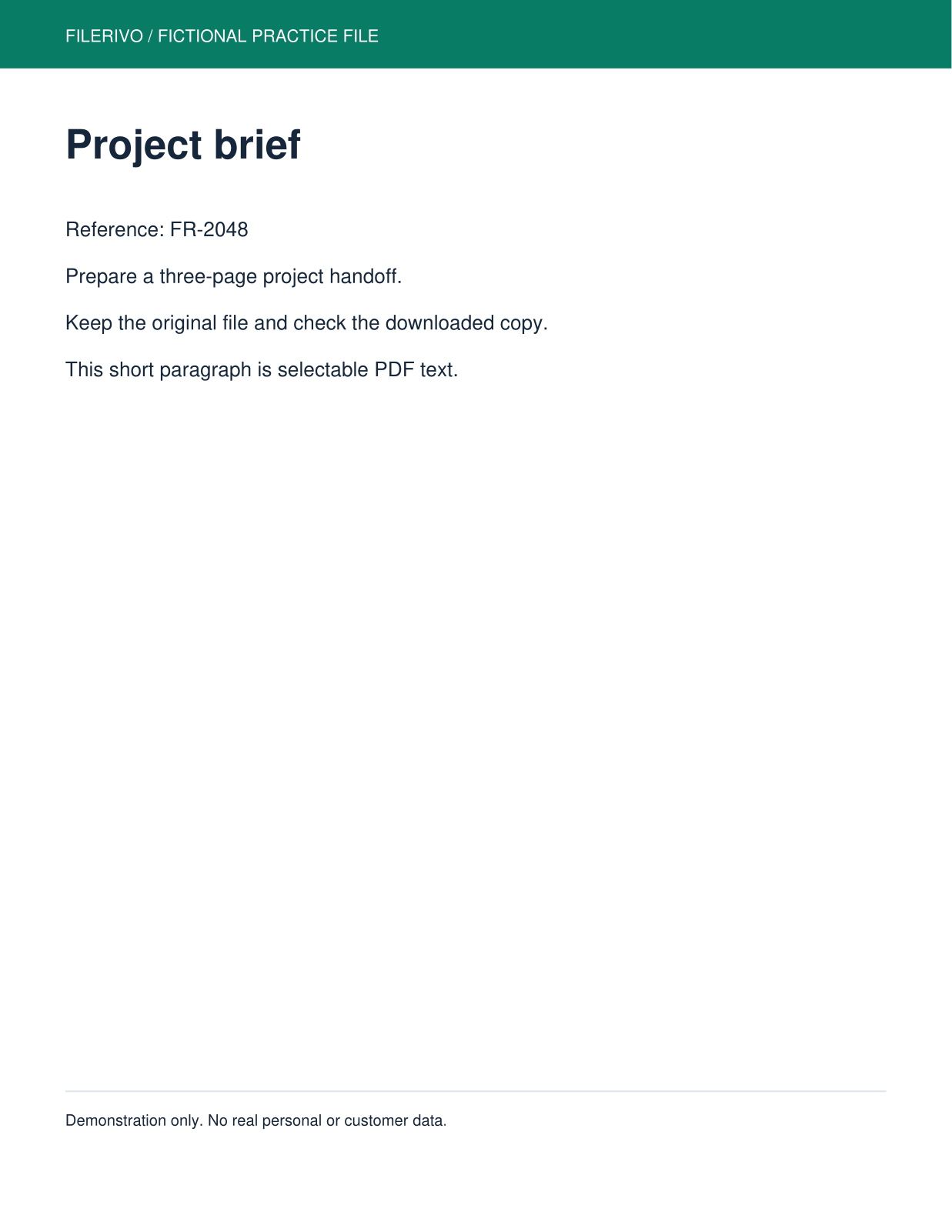
Filerivo-created demonstration files. No real personal or customer data. Settings below are a recipe, not an automatic preset.
- Enter page 2 and choose 90° clockwise in quick mode.
- Choose Apply, Preview, then Download and compare pages 1, 2 and 3.
- For a real sideways scan, choose the opposite turn if a clockwise turn makes it less readable.
- Expected result
- All three pages remain; only page 2 is turned. This demonstration deliberately makes an upright page sideways.
- Check before sharing
- Verify that pages 1 and 3 remain upright. Keep the demonstration separate from your final document.
Prepare and check your result
Choose Apply after selecting files and setting options. Preview inspects that prepared result; Download saves the same generated file. Apply again after changing files or settings. Keep your original and open important downloads in their intended application.
Tool-specific controls
Load the page cards and rotate each affected page in 90-degree increments. This supports mixed orientations in one PDF, while the quick mode applies one angle to a page range.
Rotate pages using the page-number and turn controls inside the workspace, or rotate individual page cards. Other pages stay in their original order. Reset layout clears added turns.
Limitations
Visual mode supports at most 100 pages total and overrides quick range and angle controls. Visual rotation is added to the source page rotation. The Rotate PDF tool keeps every page; only the chosen pages are turned. This changes page orientation without correcting skew inside a scan or editing its content. Keep the original and verify document-level features in the download.
Troubleshooting
Every page rotated
A blank Pages field applies rotation to every page. Enter only the intended source positions.
The chosen angle was ignored
If visual layout is enabled, individual page-card rotations override quick angle and range controls.
The text is tilted a few degrees
Quarter-turn rotation fixes orientation, not small-angle scan skew. Use a scan correction tool for deskewing.
Still stuck? Keep the original and note the tool, file type, approximate size and error message. Contact Filerivo with those details; do not email confidential files.