
Fill an exact-size banner without stretching the image
Make a 1000 × 500 banner with proportional Fill, adjust the crop precisely, and inspect the downloaded result.
Updated November 10, 2026 · instructions, sample example and troubleshooting reviewed.
A banner can need exact pixel dimensions and no empty bands. Simply changing width and height independently can stretch the subject. Filerivo’s Resize image advanced canvas editor offers another route: Fill scales the image proportionally to cover the canvas, then clips the overflow. You decide whether the crop still tells the right story.
Worked example: a 1000 × 500 banner with no padding
Use the 1200 × 800 practice PNG. The goal is a 1000 × 500 PNG banner that covers the whole rectangle without stretching its circular marker. These dimensions are an example design requirement, not a platform specification. They are calculated output expectations, not a measured file-size result.
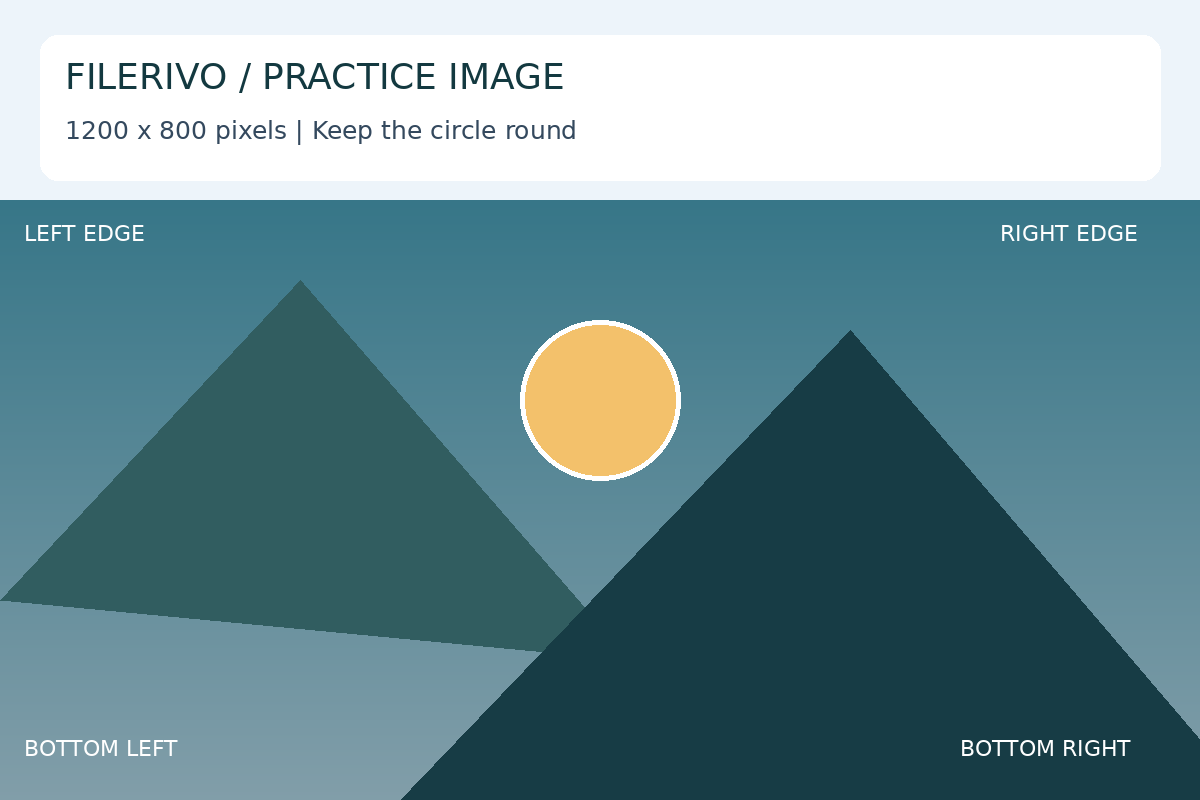
At those settings, Fill scales the image to 1000 × 667 pixels and centers it at Left 0, Top −83. The 500-pixel-high canvas clips about 83 pixels above and 84 below the scaled image. That is intentional cropping. If important content sits there, move the image or choose a different composition.
- Keep your original. Open Resize image and select the practice PNG. Open Advanced canvas editor and enable Use canvas layout for download.
- Leave the canvas dimension lock unchecked. Set Canvas width to 1000 and Canvas height to 500. Choose PNG output and a White background.
- Click Fill after entering both canvas dimensions. Check Image width 1000, Image height 667, Left 0 and Top −83. Avoid changing image width and height independently. The circle should remain round and the rectangle should have no empty bands.
- For a deliberate framing adjustment, set Top to −40, leaving Left 0 and image dimensions unchanged. The image now loses 40 scaled pixels above and 127 below. Compare the upper and lower labels. Use whichever placement retains the content you need; return to Fill to restore the centered crop.
- Choose Apply, then Preview. Inspect the encoded result. If you change placement or settings, Apply again before reviewing. Choose Download to save the prepared output.
- Open the downloaded PNG. Check that its properties show 1000 × 500 pixels, its circle is round, no empty band appears, and the necessary labels and edges remain visible. Check actual bytes if your destination also has a size limit.
Move the image without exposing the background
For this example, Top values from −167 through 0 keep the 667-pixel image covering the 500-pixel canvas vertically. Moving farther exposes background at one edge. Left remains 0 because image and canvas widths match. Dragging is useful for exploration; the precise placement fields make a chosen composition repeatable.
Center changes position without scaling. Fill recalculates size and centers the image. If you change the canvas dimensions, click Fill again and inspect the new crop. The preview frame and handles are editing aids; they are not part of the exported image.
When cropping is the wrong tradeoff
If every edge must remain visible, use Fit and accept padding, or choose a source with the required ratio. Monday’s square-canvas spotlight demonstrates Fit. A 3:2 source cannot fill a 2:1 rectangle while simultaneously keeping all content and preserving proportions without adding background.
Canvas output supports PNG, JPG and WebP. PNG avoids lossy JPG encoding but does not guarantee fewer bytes. JPG replaces transparency with white. The canvas is limited to 10,000 pixels per side and 25 million pixels in total. Enlarging adds pixels without restoring missing detail; resizing may discard metadata. Work from the original for another revision rather than repeatedly re-encoding exported copies.
The preview is scaled to fit the workspace. Judge fine text in the downloaded file at full size as well. Pixel dimensions and byte size are separate requirements: this recipe sets dimensions, not a target number of kilobytes. See the Resize image guide for the complete control reference.
Troubleshooting
- The banner is stretched
- Likely cause: quick resize or independently edited image dimensions. Enable canvas layout, set the canvas size, and click Fill again to restore proportional image scaling.
- An important label disappears
- Likely cause: Fill clips overflow. Adjust Top within the coverage range, inspect both edges, or switch to Fit if all content is required. A different source may be necessary.
- A white band appears
- Likely cause: the image was dragged beyond canvas coverage or Fit was used. Click Fill again. For this exact example, keep Left 0 and Top between −167 and 0.
- The saved file has the wrong framing
- Likely cause: canvas layout was disabled or edits were made after applying. Enable Use canvas layout for download, choose Apply again, and inspect Preview before Download.
- The file is too large for the destination
- Likely cause: exact dimensions do not control encoded bytes. If accepted, try a suitable copy with Compress image, compare readability and actual size, and verify dimensions again. Keep the PNG when a smaller lossy copy damages needed detail.