
Resize image
Set image dimensions freely or lock their proportions.
Leave Lock pixels unchecked to set width and height independently.
Advanced options · choose a file to unlock
Meet image dimensions without stretching
Check the required width and height, preserve proportions when appropriate, and use Fit or Fill when the destination requires a different shape.
Changing width and height independently can distort the image. Fit adds space around it; Fill can crop the edges. Enlarging an image adds pixels without restoring missing detail.
How to use Resize an image
- Open Resize image and select one JPG, PNG, or WebP file.
- Enter width and height from 1 to 10,000 pixels. The aspect ratio starts unlocked. Check Lock pixels beside Width (pixels) to keep the current proportions while changing either dimension. Uncheck it to resize freely.
- For a composition, open Advanced canvas editor and enable Use canvas layout for download. Set the canvas dimensions, then drag the image or use Fit, Fill, Center, and the precise placement fields. Choose a background and PNG, WebP, or JPG output.
- Choose Apply, Preview, then Download the new file, open it at the intended viewing size, and compare it with the original.
Reduce a landscape image without stretching it
The practice image is exactly 1200 × 800 pixels, a 3:2 ratio.
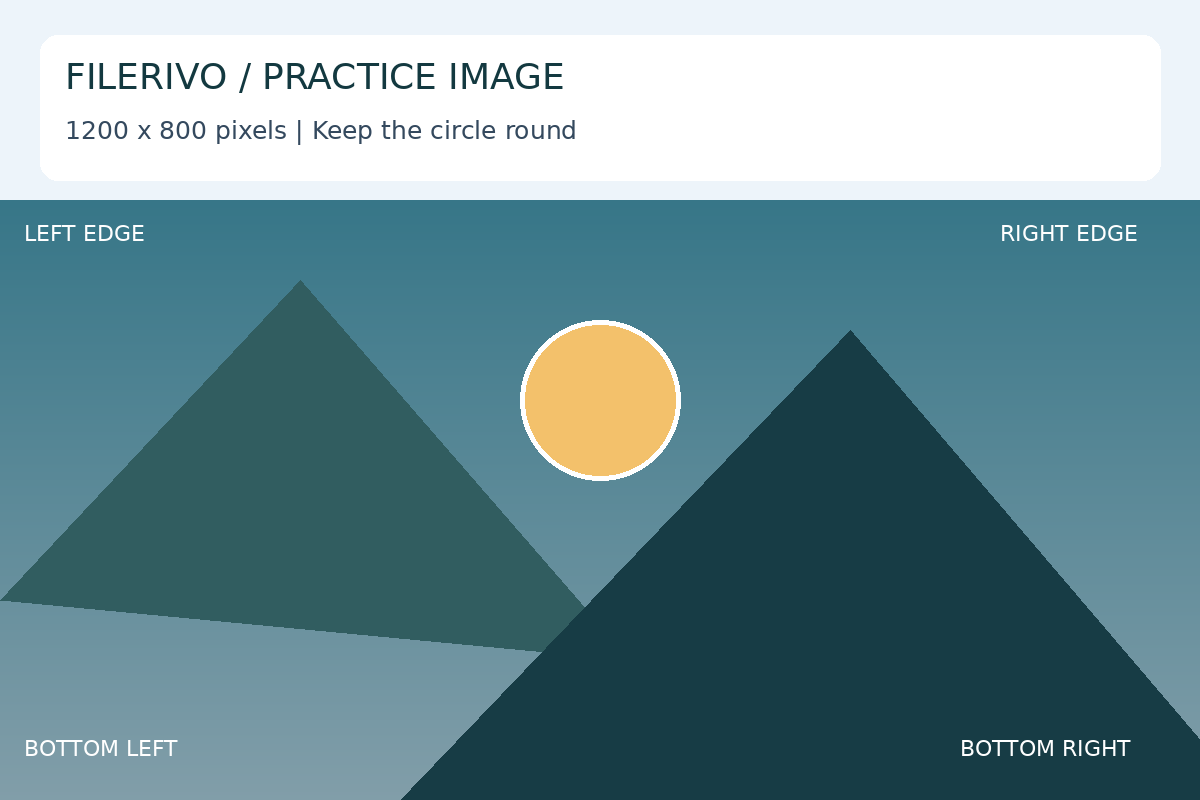
Filerivo-created demonstration files. No real personal or customer data. Settings below are a recipe, not an automatic preset.
- Enter width 1200 and height 800 if the fields do not already match the source.
- Enable Lock pixels and change width to 600. Check that height becomes 400.
- Resize and choose Apply, Preview, then Download. For a fixed square instead, use a square canvas with Fit for borders or Fill for cropped edges.
- Expected result
- A 600 × 400 image in the simple proportional resize example.
- Check before sharing
- Inspect image properties for dimensions and check that the circular marker remains round.
Prepare and check your result
Choose Apply after selecting files and setting options. Preview inspects that prepared result; Download saves the same generated file. Apply again after changing files or settings. Keep your original and open important downloads in their intended application.
Tool-specific controls
In canvas mode, the width and height fields describe the output canvas. The image inside it has separate Left, Top, Image width, and Image height fields. Drag to move, drag any corner or side handle to resize, or use those fields for exact placement.
Fit keeps the whole image within the canvas; Fill covers the canvas and clips overflow; Center changes position without changing image size. Lock pixels beside Canvas width keeps the output dimensions proportional; leave it unchecked to change them independently. Keep image proportions controls the image layer separately. Choose transparent, white, or custom background and PNG, WebP, or JPG output. Enable Use canvas layout for download.
Limitations
Unlocked dimensions can stretch the image. Enlarging does not add real detail. Output is limited to 25 million pixels. Quick resize preserves the input format. Canvas mode lets you choose PNG, WebP, or JPG; JPG turns transparency white. Fill and off-canvas positioning clip content outside the canvas. Resizing does not guarantee a smaller file.
Troubleshooting
The image is stretched
Set the source proportions before enabling Lock pixels, or use canvas Fit. Independent width and height values can distort content.
The enlarged result looks soft
Upscaling creates more pixels, not new detail. Use a higher-resolution original.
The canvas cuts off the subject
Fill and off-canvas placement clip content. Switch to Fit or reposition the image.
Still stuck? Keep the original and note the tool, file type, approximate size and error message. Contact Filerivo with those details; do not email confidential files.