
How to Make Images Smaller for Email
Resize and compress photos for email, keep screenshot text readable, and check attachment sizes. Follow practical JPG, PNG and WebP examples.
Updated November 4, 2026 · instructions, sample example and troubleshooting reviewed.
To make an image smaller for email, reduce unnecessary pixels, then compare the encoded file size and readability. For a photo, try JPG with a 1600-pixel maximum width and 90% quality as a starting point. For a screenshot with small text, keep the original PNG if it already fits. Always attach the downloaded copy you have checked.
Make a photo smaller in one tool
You can resize and compress together in Compress image. Keep the original so you can try again without repeatedly recompressing an exported copy.
- Choose your JPG, PNG, or WebP image. The advanced comparison opens after selection.
- For an ordinary photo, choose JPG in the advanced format control, set quality to 90%, and enter 1600 in Maximum width (px). The width limit keeps proportions and does not enlarge a smaller image. These settings are a starting point, not a size guarantee.
- Choose Pause comparison. Inspect faces, labels, and edges using the divider. Read the actual original and encoded byte sizes.
- If the output is still too large, try 75% quality or a smaller maximum width from the original. Recheck important details after each change. Confirm that advanced settings are enabled for the download.
- Download, open the saved image, and attach that copy. Keep the original if the output is larger or less readable.
Need exact width and height, a crop, or space around the subject? Use Resize image or Crop image first, then compress the resulting copy if needed.
Choose settings for the image you are sending
- A photo for someone to view on screen
- Try JPG, 1600-pixel maximum width, and 90% quality. Compare 75% only if you still need fewer bytes. Retain more pixels when fine detail matters.
- A screenshot, diagram, or image with small text
- Keep a readable PNG when it fits. Avoid shrinking small lettering. If you try WebP or JPG, compare the smallest text at its intended viewing size and check that the recipient accepts the format.
- A transparent logo
- Keep PNG, or use WebP when supported. JPG cannot preserve transparency and uses an opaque background. Check the downloaded appearance.
- A photo needed for print or detailed inspection
- Ask what resolution the recipient needs before reducing it. A shared original may be more suitable than a small email preview.
Quality is an encoder setting, not the percentage of detail retained. There is no universal best width, format, or quality for every attachment. Read more about choosing JPG, PNG, or WebP.
Compare a small email attachment with its original
The sample PNG is already a compact 1200 × 800 graphic. It is useful for learning that fewer pixels do not always mean fewer bytes.
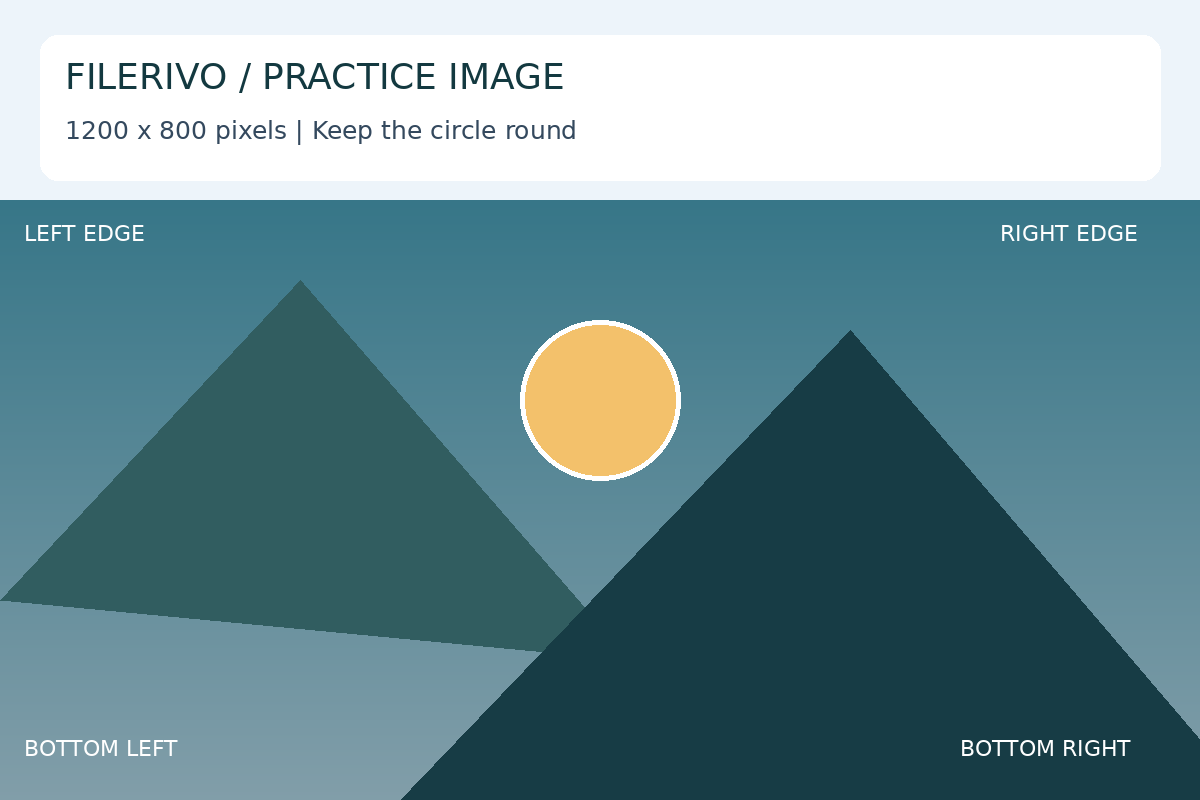
Original Filerivo demonstration files with made-up details. These settings are a recipe to try, not an automatic preset or a promised size saving.
- In Resize image, set the source proportions to 1200 × 800, enable Lock pixels, and change width to 900. Check height becomes 600, then download.
- Load the resized copy in Compress image. Start with JPG at 90% quality when the recipient requires JPG.
- Pause the encoded comparison and inspect the small labels and diagonal edges. Read the actual output bytes.
- Compare the original PNG, resized PNG and JPG. Attach the smallest acceptable copy that remains readable, rather than automatically choosing the JPG.
- Expected result
- The proportional resize creates a 900 × 600 copy. The encoded JPG can still be larger than the original PNG; there is no promised saving.
- Check the downloaded copy
- Open the attachment you intend to send. Check its dimensions and file type, then verify the recipient can open that format.
Need an image below 200 KB or 1 MB?
First check the destination's actual limit. Pixel dimensions describe width and height; KB and MB describe file size. A 900 × 600 image can be larger than a 1200 × 800 image if its content or encoding differs.
- Start from the original and try the settings above.
- Compare the downloaded bytes with the target. The compressor has quality and width controls, not a guaranteed “compress to 200 KB” setting.
- Reduce width or quality gradually, rechecking readability. Do not keep compressing the last exported copy.
- If no readable copy fits, use a permitted sharing method or ask the recipient for another option.
For several attachments, add their sizes together. Five files of 1 MB each total about 5 MB before the email is encoded. Leave headroom for other attachments and the mail service's handling; a per-image target is not the same as the message limit.
Check the email limit before reducing quality
A limit depends on the sending account and the recipient's service. Google's Gmail attachment guidance gives personal Gmail a 25 MB attachment limit; work and school limits are set by the administrator. Gmail switches attachments above its limit to a Drive link. Check current account rules rather than treating 25 MB as a universal email limit.
A sharing link can retain the original quality. Check recipient access and sharing permissions before sending it. If a message fails even though the images are small, investigate format restrictions, storage, connection, or account rules before compressing further.
On a phone: attach the saved result
Open the tool in your mobile browser, select a supported image, compare the result, and download it. Find the saved output in your device's downloads or file picker. In the email composer, select that file rather than choosing the original photo again. Check the filename, format, and displayed attachment size before sending.
HEIC is not an accepted input in Compress image. Select or export a supported JPG, PNG, or WebP copy first; renaming a .heic extension to .jpg does not convert the file.
Check these details before you send
- Open the exact downloaded file, not just the tool preview. Inspect the smallest important text and fine detail.
- Check every image in a batch. One preview does not establish that all outputs are readable.
- Confirm the recipient can open the format, and check the total attachment size.
- Remove private details before sharing. Resizing or compression is not a privacy-cleaning or secure-redaction tool.
Filerivo processes these images locally in your browser. The email or sharing service you use afterwards handles the file under its own rules.
Limits that matter for this task
Resizing and lossy compression can discard detail. A transparent image becomes opaque in JPG; changing formats does not remove private information.
Troubleshooting
The photo looks squeezed
Lock proportions before changing width, after confirming the fields match the source ratio. Independent width and height values can stretch it.
The preview looks clear but email text is fuzzy
Inspect the downloaded file at its actual viewing size. Keep PNG for sharp text when its size is acceptable, or retain more pixels.
A compressed copy is larger
This can happen with an efficient source PNG. Keep the original or try WebP only if the recipient accepts it.
Check the attachment copy before saving
In Resize image, Compress image or Convert images, choose Apply, then Preview beside the download action. Review the encoded output and its actual dimensions and byte size. For a batch ZIP, select an image inside the archive to inspect it; the download remains the complete ZIP. Choose Download to save that generated copy. Extract ZIPs when the recipient requires individual image attachments.
Previous feature review: October 31, 2026. Original publication date retained.