How to Compress Images and Compare Quality Live
Choose an image, compare the original with the compressed output, and download a JPG or WebP copy.
Watch on YouTube Filerivo
Compare original and compressed images in a live preview.
Advanced options · choose a file to unlock
Check the destination's accepted format and size limit first. Start with a readable preview, reduce width or quality as needed, and compare actual bytes before choosing the copy to send.
The example targets 200 KB; it does not guarantee that size. JPG is useful when a form requests it. Use WebP only when the recipient or upload service accepts it, and keep the original if compression makes it larger.
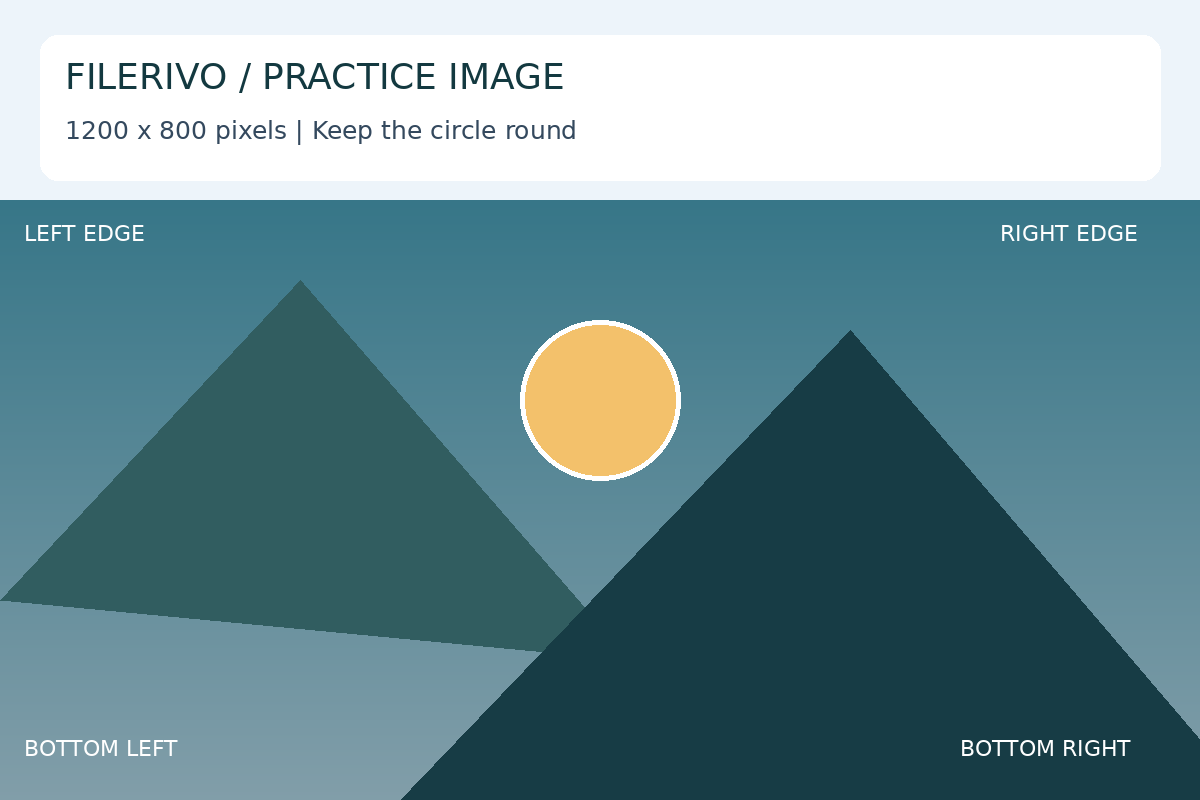
Start with the 1200 × 800 practice PNG. Assume the receiving form accepts JPG and has a 200 KB limit; this is an example requirement.
Filerivo-created demonstration files. No real personal or customer data. Settings below are a recipe, not an automatic preset.
Choose Apply after selecting files and setting options. Preview inspects that prepared result; Download saves the same generated file. Apply again after changing files or settings. Keep your original and open important downloads in their intended application.
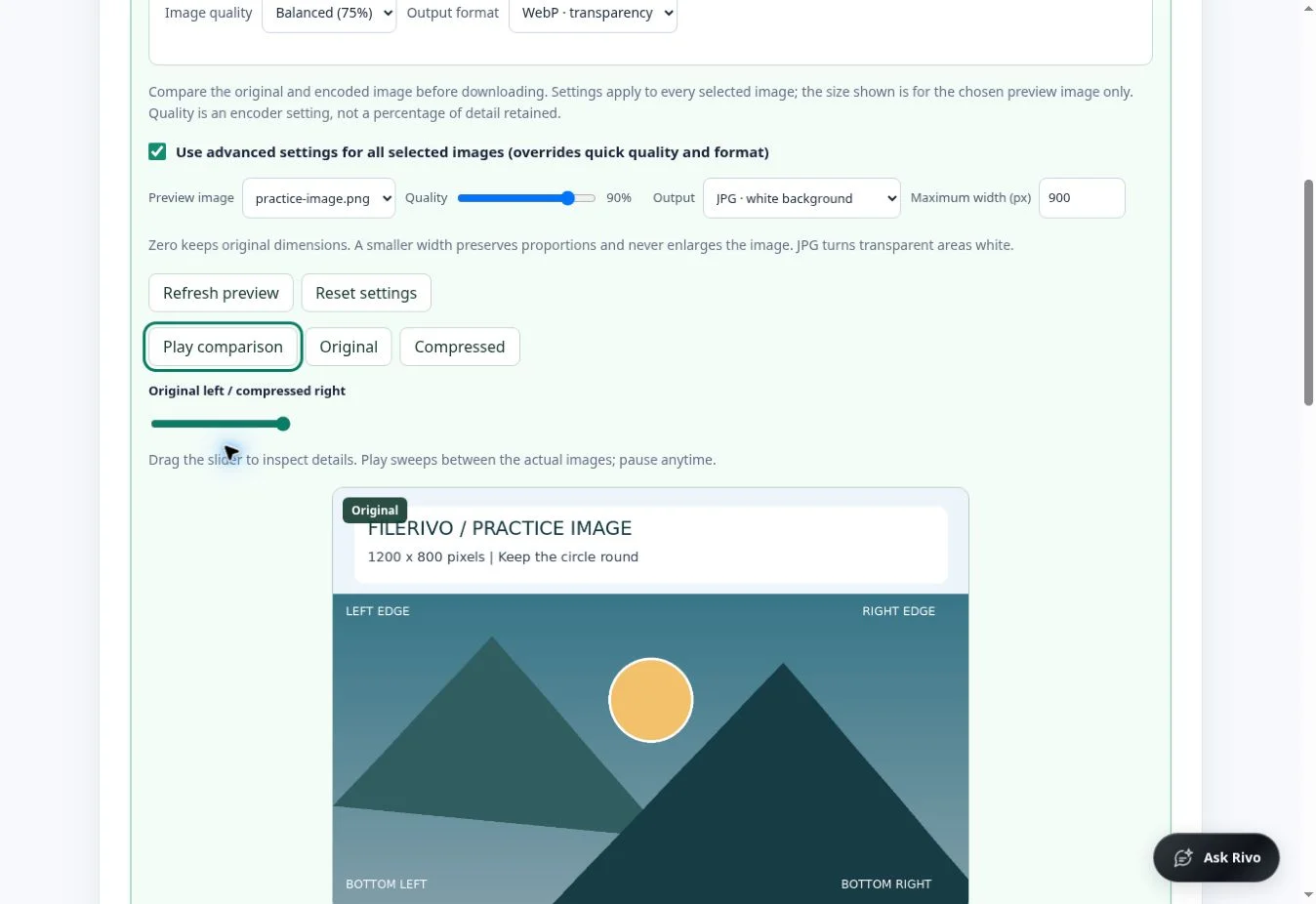
The comparison builds automatically after selecting images. Watch the animated divider, choose Pause comparison, or drag across the image or its slider to inspect edges, text, and fine detail. Original and Compressed show a complete view; Play comparison resumes the sweep. Autoplay respects reduced-motion preferences.
Choose a Preview image, then adjust quality, JPG/WebP output, or maximum width. Changes refresh the actual encoded preview and enable advanced settings for all selected files. Zero width keeps dimensions; width limits never enlarge images. Turning off advanced settings returns the preview and download to quick settings. Sizes and savings or growth describe only the selected image, not the whole batch. The animation does not change the downloaded file into a GIF.
Compression is lossy and can make an already optimized image larger. JPG turns transparent areas white. Quick mode preserves dimensions. Advanced mode can reduce the maximum width without enlarging images; zero preserves dimensions. Advanced output supports at most 10,000 pixels per side and 25 million pixels. The animated comparison is an inspection aid, not a GIF download. It shows actual encoded size and size savings or growth for one selected image, not a batch estimate. Both views are scaled to fit the same area, including when output dimensions change. Reduced-motion preferences disable autoplay, and collapsing the panel or hiding the tab stops animation. Inspect downloaded images at full size.
Follow the tool in action. The YouTube player loads only when you choose to load it.
Choose an image, compare the original with the compressed output, and download a JPG or WebP copy.
Watch on YouTubeThe source may already be compact. Compare actual bytes, try WebP if accepted, or keep the original.
Increase quality or retain more pixels. A screenshot with fine text can look better as PNG than as a small JPG.
JPG does not support transparency. Choose WebP if the receiving service accepts it.
Still stuck? Keep the original and note the tool, file type, approximate size and error message. Contact Filerivo with those details; do not email confidential files.