
Convert images
Convert JPG, PNG and WebP with quality, size limits and live comparison.
JPG does not support transparency. Transparent areas become white.
Advanced options · choose a file to unlock
Make an image match the format a service accepts
Choose the required output format rather than renaming the extension. Check transparency, dimensions and actual file size before using the converted copy.
JPG flattens transparent areas onto a background. PNG uses lossless encoding here; its quality slider is disabled. Conversion does not guarantee a smaller file.
How to use Convert images
- Select one or more JPG, PNG, or WebP files. Choose the quick output format for a simple conversion.
- Open Advanced image conversion and select Load output preview.
- Choose the preview image, JPG/PNG/WebP output, quality, maximum width and height, rotation, flips, and background. Zero removes a dimension limit; limits preserve proportions after rotation and never enlarge an image.
- Compare original and converted output side by side or drag the comparison slider. Play/Pause sweeps the comparison; Original and Converted show a complete image. Enable Use advanced settings for all selected images and choose Apply, Preview, then Download. Multiple outputs arrive in a ZIP.
Make a JPG copy for a service that rejects PNG
Use the practice PNG and a destination that accepts JPG.
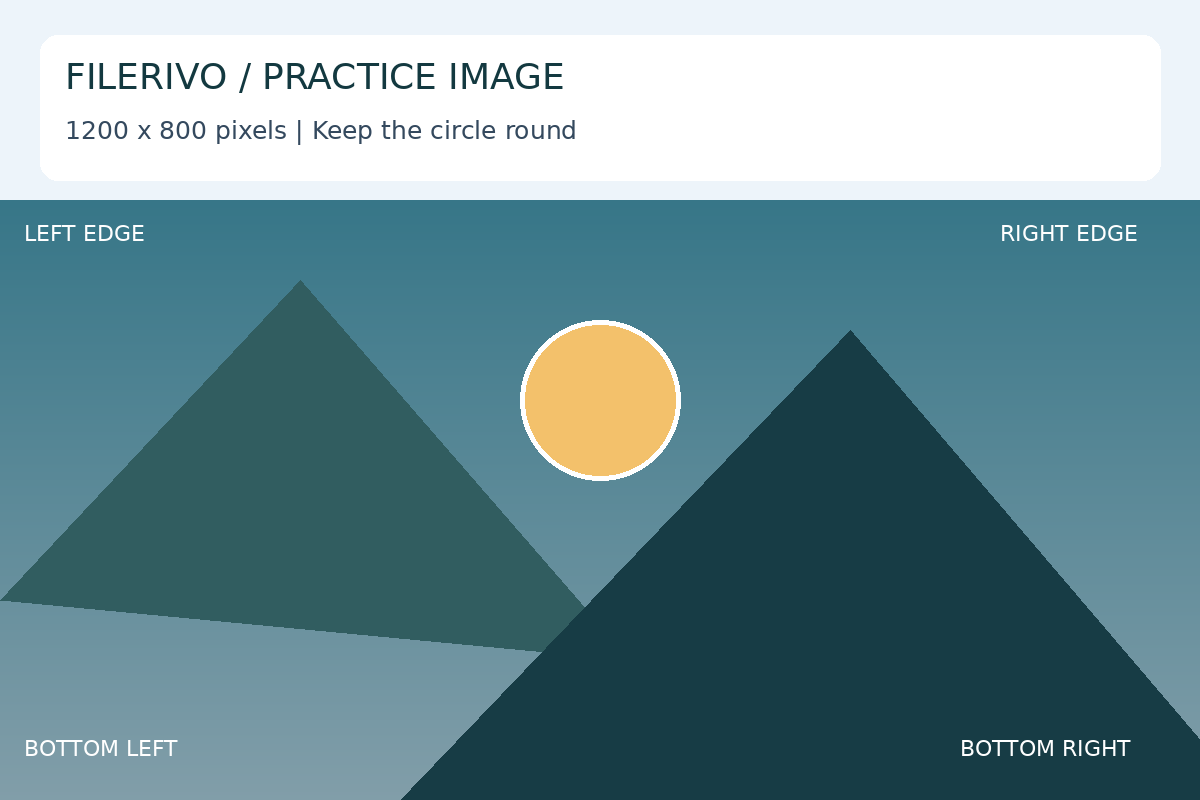
Filerivo-created demonstration files. No real personal or customer data. Settings below are a recipe, not an automatic preset.
- Open the advanced output preview and choose JPG, 90% quality, and a white background.
- Leave maximum width and height at zero to retain the source dimensions.
- Compare the converted output, enable advanced settings, and choose Apply, Preview, then Download.
- Expected result
- A 1200 × 800 JPG copy. Renaming a .png file to .jpg would not perform this conversion.
- Check before sharing
- Check the extension, dimensions, edges and actual byte size. Quality 90 is a starting point, not a guarantee of a smaller file.
Prepare and check your result
Choose Apply after selecting files and setting options. Preview inspects that prepared result; Download saves the same generated file. Apply again after changing files or settings. Keep your original and open important downloads in their intended application.
Tool-specific controls
JPG, PNG and WebP conversion now share one tool. Maximum width and height preserve proportions after rotation; zero removes a limit. Use the original/output slider and Play/Pause to compare actual encoded output.
Advanced conversion combines quarter-turn rotation, flips of the final image, transparent or solid background, output format, and quality. Previews update automatically when settings change. Reset settings restores the defaults; Refresh preview is available to retry a failed preview.
Enable advanced settings for all selected images to override quick format selection. Original and converted views are scaled to fit, so inspect the downloaded image at full size for fine detail.
Limitations
Advanced conversion supports at most 10,000 pixels per side and 25 million pixels per image. A quarter-turn swaps width and height. JPG cannot retain transparency; it uses white unless a solid background color is selected. PNG uses lossless encoding, so its quality slider is disabled. Conversion does not guarantee a smaller file or restore detail. Original metadata may not carry over; output is a still image. Batch settings apply to every file, while preview statistics describe only the chosen image.
Troubleshooting
Transparent areas have changed
JPG must flatten them onto a solid color. Use PNG or WebP when transparency is required.
The PNG quality slider is disabled
PNG uses lossless encoding here. Change dimensions to affect size or choose a lossy format.
Only one preview changed in a batch
The preview reports the selected image. Advanced settings apply to all selected images when enabled; check each exported file.
Still stuck? Keep the original and note the tool, file type, approximate size and error message. Contact Filerivo with those details; do not email confidential files.