
JPG, PNG or WebP: which image format should you use?
Choose a format based on photos, transparency, file size, and where the image will be opened.
Updated November 4, 2026 · instructions, sample example and troubleshooting reviewed.
There is no single best format for every image. Choose based on the picture and the place you will use it.
Choose by evidence, not by the format name
Create JPG, PNG and WebP copies of the same sample graphic, keeping dimensions unchanged for a fair comparison.
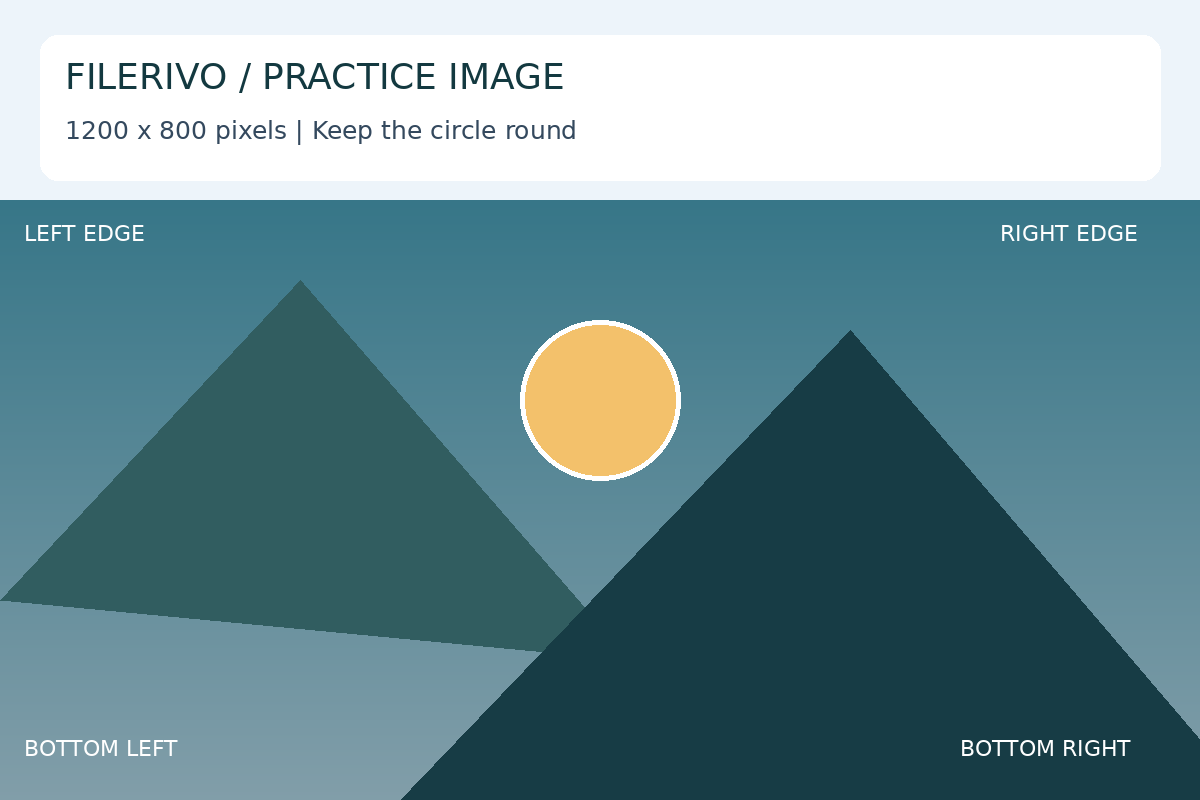
Original Filerivo demonstration files with made-up details. These settings are a recipe to try, not an automatic preset or a promised size saving.
- Open Convert images and load the sample PNG. Open the advanced output preview.
- Leave maximum width and height at zero. Encode JPG at 90% quality with a white background and inspect the lettering.
- Try PNG, then WebP at 90%, downloading separate copies with advanced settings enabled each time.
- Compare actual byte sizes, edges and lettering at the same viewing scale. Choose a format accepted by the destination.
- Expected result
- Three 1200 × 800 still-image copies, with different encoding characteristics and byte sizes. PNG quality is disabled; the WebP quality control here does not promise lossless output.
- Check the downloaded copy
- A general claim that WebP supports lossless encoding does not mean this tool’s quality slider selects that mode. Keep the original if no copy improves the tradeoff.
JPG for widely shared photos
JPG is a practical choice for photographs that need broad compatibility. It uses lossy compression, so repeated re-encoding or aggressive quality settings can soften fine detail. JPG does not support transparent areas; converting a transparent graphic to JPG requires a background color. Quick conversion uses white for this conversion; advanced conversion lets you choose a solid background color.
PNG for graphics with sharp edges or transparency
PNG is useful for diagrams, screenshots with text, logos, and graphics that need transparency. It can be larger than JPG for photographs. Changing a small JPG to PNG does not restore detail already lost by JPG compression.
WebP when size and transparency matter
WebP supports both lossy and lossless compression and transparency. It is often a good choice for website images, although you should check that the app or destination you use accepts it. Google documents WebP's transparency support and compression modes; MDN lists browser support and format tradeoffs.
Try the options
Use Convert image to make a copy in another format, Compress image to test a quality setting, or Resize image when the pixel dimensions are more than you need. Compare the result at its actual display size before discarding the original.
Preview the conversion, including its background
Advanced image conversion previews the actual encoded JPG, PNG, or WebP copy. You can rotate, flip, and choose a solid background color or preserve transparency where the output format supports it. JPG always needs an opaque background; PNG output is lossless and its quality slider is disabled. Check transparent edges and small lettering in the preview before enabling advanced settings. Batch settings apply to all selected images, so review the images that matter.
WebP is an output option in the combined Convert images tool. Its advanced preview includes quality and maximum-dimension controls and reports the chosen preview image’s encoded size. A lower setting is not automatically better: compare the result with its source and keep the original when the smaller copy loses needed detail.
Limits that matter for this task
JPG cannot retain transparency. Conversion cannot restore missing detail, may remove metadata, and can increase file size.
Troubleshooting
PNG ignores the quality value
PNG encoding is lossless here, so its quality slider is disabled. Change dimensions or choose a lossy format if appropriate.
A transparent logo has a white box
JPG requires an opaque background. Choose PNG or WebP when transparency is required and supported by the destination.
WebP will not upload
The destination may accept only JPG or PNG. Choose a supported format and compare the new output rather than only renaming its extension.
Inspect each generated format
After choosing your format and enabling any advanced settings, choose Apply, then Preview. A single conversion displays the actual encoded image and its dimensions and size. Batch conversions open a ZIP path list; select each image to inspect it. Download saves the displayed output file or complete batch ZIP.
Previous feature review: October 28, 2026. Original publication date retained.