
Compress images
Make a photo smaller for email or an upload form. Compare actual file size and readable detail, then save a checked copy.
Try it with your image.
Keep your original. Compare the copy’s size and detail before saving. Processing stays in this browser.
- Select an imageKeep the original. Try one photo first.
- Compare size & detailUse Apply, then Preview to check the prepared copy.
- Download & reopenCheck readability and the destination’s size limit.
What do you need it for?
These links open the same compressor; they do not apply presets or promise a target file size. For screenshots with small text, keep enough pixels and compare carefully.
When to use it
A camera photo is too large for a form. Set an optional maximum width, watch the original/compressed comparison, then pause over a label or face to check detail before downloading.
Prepare a readable image for an upload form
Start with the 1200 × 800 practice PNG. Assume the receiving form accepts JPG and has a 200 KB limit; this is an example requirement.
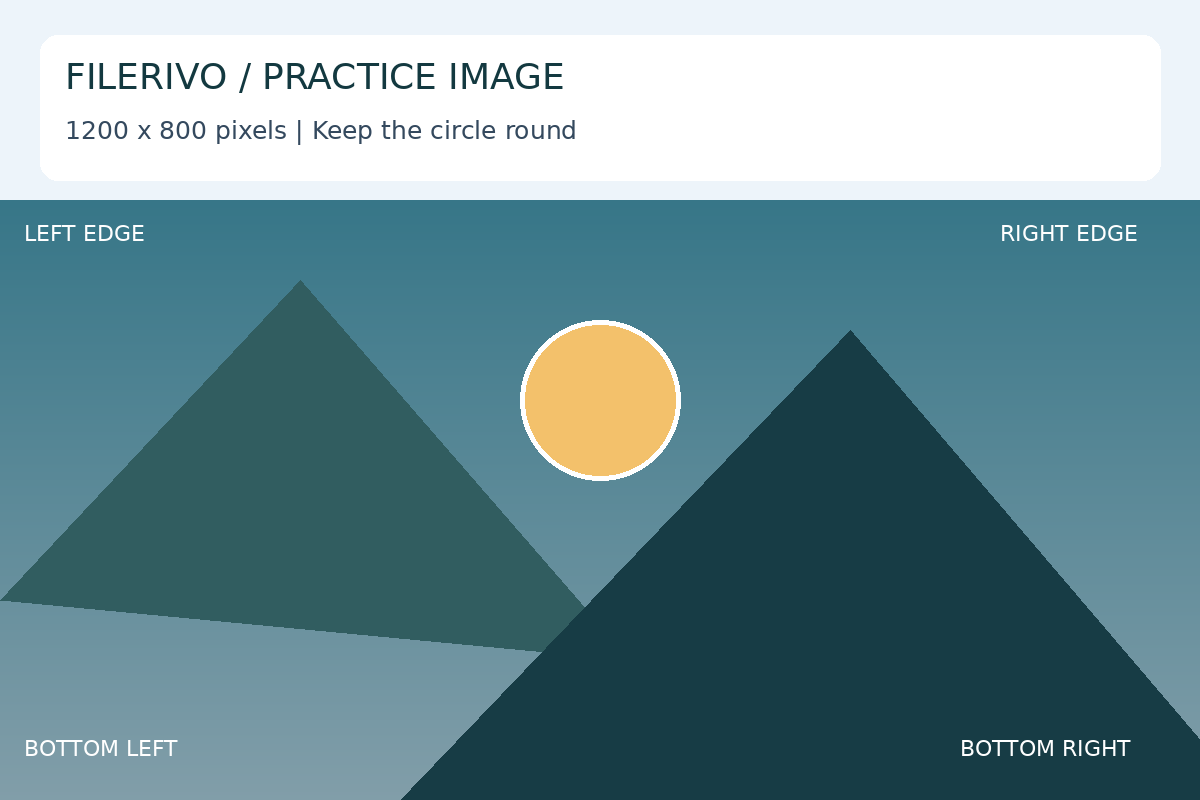
Filerivo-created demonstration files. No real personal or customer data. Settings below are a recipe, not an automatic preset.
- Choose JPG output and start at 90% quality.
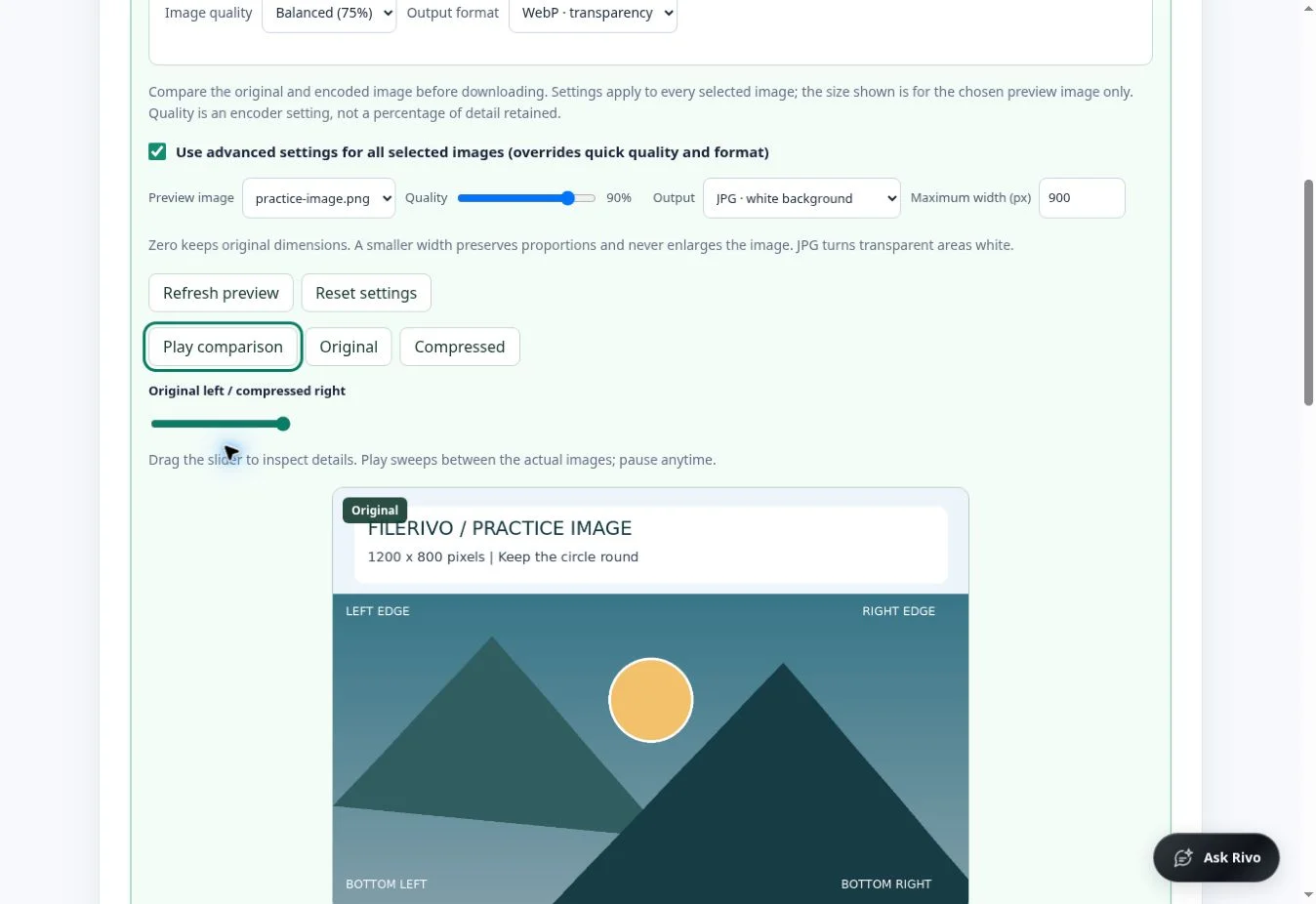
- Set advanced maximum width to 900 pixels and compare the small text and diagonal edges.
- Choose Apply, Preview, then Download and check the actual file size. If it exceeds 200 KB, lower quality gradually or reduce width again.
- Expected result
- A JPG at 900 × 600 pixels when the width limit is applied. The byte size depends on image content; 200 KB is a target, not a promised result.
- Check before sharing
- Open the download at full size. The small labels should remain legible and the form must accept its actual byte size.
How to do it
- Choose one or more JPG, PNG, or WebP images in Compress image.
- Select WebP for a smaller modern image with transparency, or JPG when the destination asks for a widely accepted format. Start at Higher (90%) quality for fine details.
- After selecting files, Advanced compression preview opens and builds the comparison automatically. The moving divider sweeps between Original on the left and Compressed on the right using the actual encoded image.
- Select Pause comparison to stop the animation. Drag across the image or move the slider to inspect detail. Original and Compressed show a complete image; Play comparison restarts the sweep. Autoplay stays off when your device requests reduced motion.
- Choose Preview image to inspect another file. Changing advanced quality, output format, or maximum width automatically refreshes the preview and enables advanced settings for the batch. Zero maximum width keeps dimensions; a width limit reduces images without enlarging them. Leave the advanced-settings checkbox on to download these settings, or turn it off to return to quick settings.
- Choose Apply, Preview, then Download. Multiple images arrive in a ZIP. Open each copy and compare text, edges, and file size with the original.
Apply, preview and download
Choose Apply after selecting files and setting your options. Complete any required advanced recognition, review or workflow steps first. Apply prepares a result without downloading it. Choose Preview to review that prepared output. Inspect the encoded image, its dimensions and actual byte size. For a batch ZIP, select each image inside the archive; the download remains the complete ZIP. Choose Download to save the same generated file.
Preview and Download become available after Apply. Changing files, settings or visual edits requires Apply again. Content preview supports up to 100 MiB per output or archive entry; text and Word content have a 2 MiB preview limit and long text display is truncated. Keep originals and inspect the full download in its intended application.
Use the advanced controls
Before file selection, the controls are dimmed. Select supported images to open and build the comparison automatically. Quick settings apply until you change advanced settings; those changes enable the advanced-download checkbox. Turn it off to return to quick quality and format without resizing. Switching files or tools clears unsaved settings.
The comparison builds automatically after selecting images. Watch the animated divider, choose Pause comparison, or drag across the image or its slider to inspect edges, text, and fine detail. Original and Compressed show a complete view; Play comparison resumes the sweep. Autoplay respects reduced-motion preferences.
Choose a Preview image, then adjust quality, JPG/WebP output, or maximum width. Changes refresh the actual encoded preview and enable advanced settings for all selected files. Zero width keeps dimensions; width limits never enlarge images. Turning off advanced settings returns the preview and download to quick settings. Sizes and savings or growth describe only the selected image, not the whole batch. The animation does not change the downloaded file into a GIF.
Check the preview and download
Previews render at higher pixel density and are scaled to fit the page. They do not restore detail missing from the original, and their display size does not change export dimensions. For encoded-output comparisons, check both visible detail and the reported size. Always open the downloaded file for a final check.
Know the limits
Compression is lossy and can make an already optimized image larger. JPG turns transparent areas white. Quick mode preserves dimensions. Advanced mode can reduce the maximum width without enlarging images; zero preserves dimensions. Advanced output supports at most 10,000 pixels per side and 25 million pixels. The animated comparison is an inspection aid, not a GIF download. It shows actual encoded size and size savings or growth for one selected image, not a batch estimate. Both views are scaled to fit the same area, including when output dimensions change. Reduced-motion preferences disable autoplay, and collapsing the panel or hiding the tab stops animation. Inspect downloaded images at full size.
Watch the walkthrough
Follow the tool in action. The YouTube player loads only when you choose to load it.
How to Compress Images and Compare Quality Live
Choose an image, compare the original with the compressed output, and download a JPG or WebP copy.
Watch on YouTubeTroubleshooting
The file is larger after compression
The source may already be compact. Compare actual bytes, try WebP if accepted, or keep the original.
Text looks fuzzy
Increase quality or retain more pixels. A screenshot with fine text can look better as PNG than as a small JPG.
A transparent background turned white
JPG does not support transparency. Choose WebP if the receiving service accepts it.
Still stuck? Keep the original and note the tool, file type, approximate size and error message. Contact Filerivo with those details; do not email confidential files.
Ready to check your own image?
Start with one file. Keep the original if the prepared copy is larger or harder to read.
Open image compressor →