
Crop image
Drag a crop box or choose a precise aspect ratio.
Preview updates after you select an image. Use percentages to set the crop area.
Advanced options · choose a file to unlock
Frame a landscape image for a square post
Choose a crop ratio, move the selection around the subject, and check which edge details will be removed before saving the crop.
Cropping discards everything outside the selection. A smaller crop contains fewer source pixels; it does not preserve the original dimensions or add new detail.
How to use Crop an image
- Choose one JPG, PNG, or WebP image.
- Open Advanced crop editor. Select Free crop, Square, 4:3, 16:9, or Original ratio.
- Drag inside the box to move it and use the bottom-right handle to resize. The Left, Top, Width, and Height percentage fields stay synchronized.
- Check the estimated pixel dimensions, then crop and choose Apply, Preview, then Download. Full image restores the entire image.
Take a centered square from a landscape image
Use the 1200 × 800 practice image.
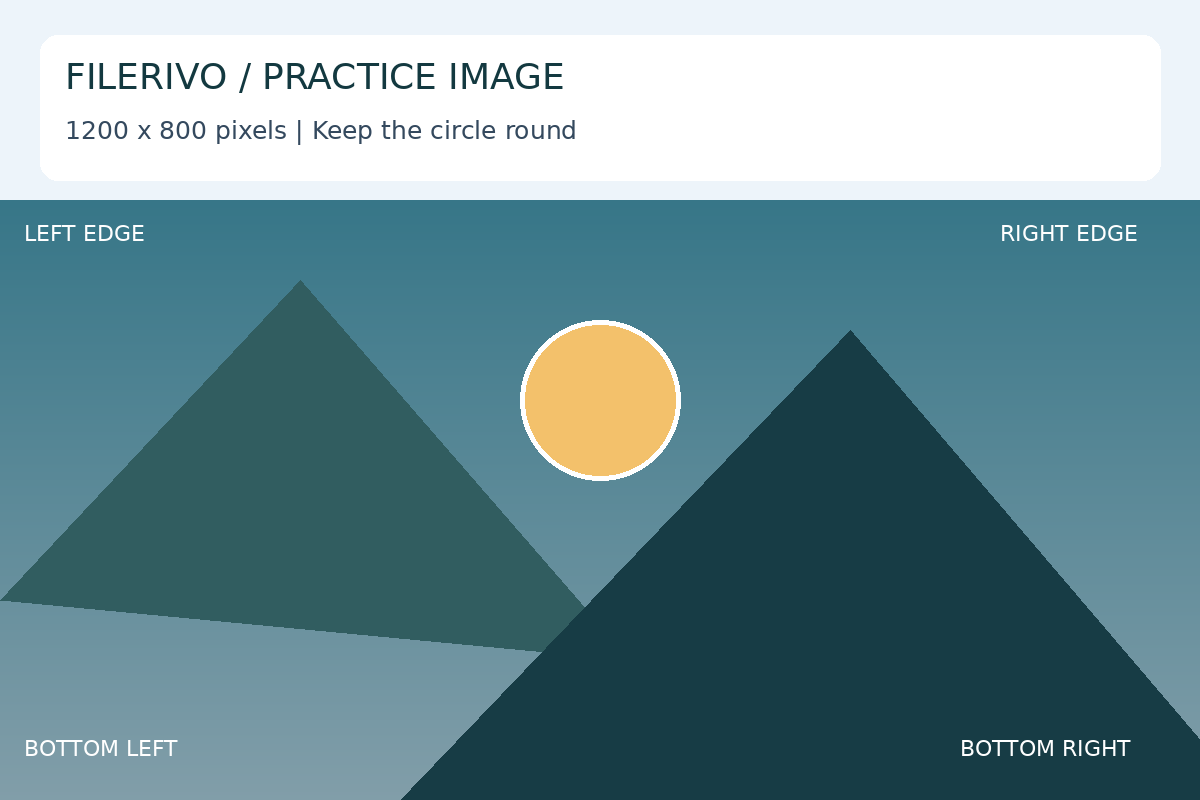
Filerivo-created demonstration files. No real personal or customer data. Settings below are a recipe, not an automatic preset.
- Choose the Square crop preset.
- Center the largest square on the image: it covers 800 × 800 source pixels, removing about 200 pixels from each side.
- Check the estimated output dimensions, then crop and choose Apply, Preview, then Download.
- Expected result
- An approximately 800 × 800 square. Dragging a smaller square intentionally produces fewer pixels.
- Check before sharing
- Check that the center marker is retained and no important edge label was clipped unintentionally.
Prepare and check your result
Choose Apply after selecting files and setting options. Preview inspects that prepared result; Download saves the same generated file. Apply again after changing files or settings. Keep your original and open important downloads in their intended application.
Tool-specific controls
Choose a ratio preset, then resize with any of the four corner or four side handles; Free crop removes the ratio constraint. Drag inside the box to reposition it. The preview and percentage fields remain synchronized.
With the canvas focused, arrow keys move the box by 1 percentage point and Shift moves by 5. Full image resets the crop. This editor directly updates the quick crop fields, so no separate advanced-download checkbox is required.
Limitations
The crop must stay inside the image and have positive width and height. Percentages refer to the original image; output pixel dimensions are rounded down with a minimum of one pixel. Cropping removes surrounding content and does not add detail or compress to a target byte size. Output preserves the input format; JPG and WebP are re-encoded. The crop preview is a placement aid, not a full-size encoded-output comparison.
Troubleshooting
The result is smaller than expected
The crop box selects source pixels. Resize only after cropping if a destination needs exact dimensions.
The box will not change shape
A ratio preset constrains it. Choose Free crop for independent width and height.
The preview looks right but the edges are missing
Cropping discards everything outside the box. Return to the original and enlarge or move the selection.
Still stuck? Keep the original and note the tool, file type, approximate size and error message. Contact Filerivo with those details; do not email confidential files.