
Images to PDF
Make one PDF from your JPG or PNG images.
Advanced options · choose a file to unlock
Share document photos as one PDF
Choose the images in reading order, set the paper layout, and inspect each page for clipped edges before creating one PDF.
An image PDF does not automatically contain searchable text. Use OCR separately if needed. Fit preserves the whole picture; filling a page may crop its edges.
How to use Images to PDF
- Choose one or more JPG or PNG images in Images to PDF.
- Move the selected files up or down until the order is correct.
- For print-ready layout, open Advanced PDF page layout. Choose A4, US Letter, or image-size pages; set orientation, margins, image rotation, and background. Fit keeps the whole image; Fill crops overflow within the margins. Load the page preview and enable advanced layout.
- Create the PDF. Open it and check orientation, page sequence, and whether small text remains readable.
Place an image on a standard paper page
Use the 1200 × 800 practice PNG.
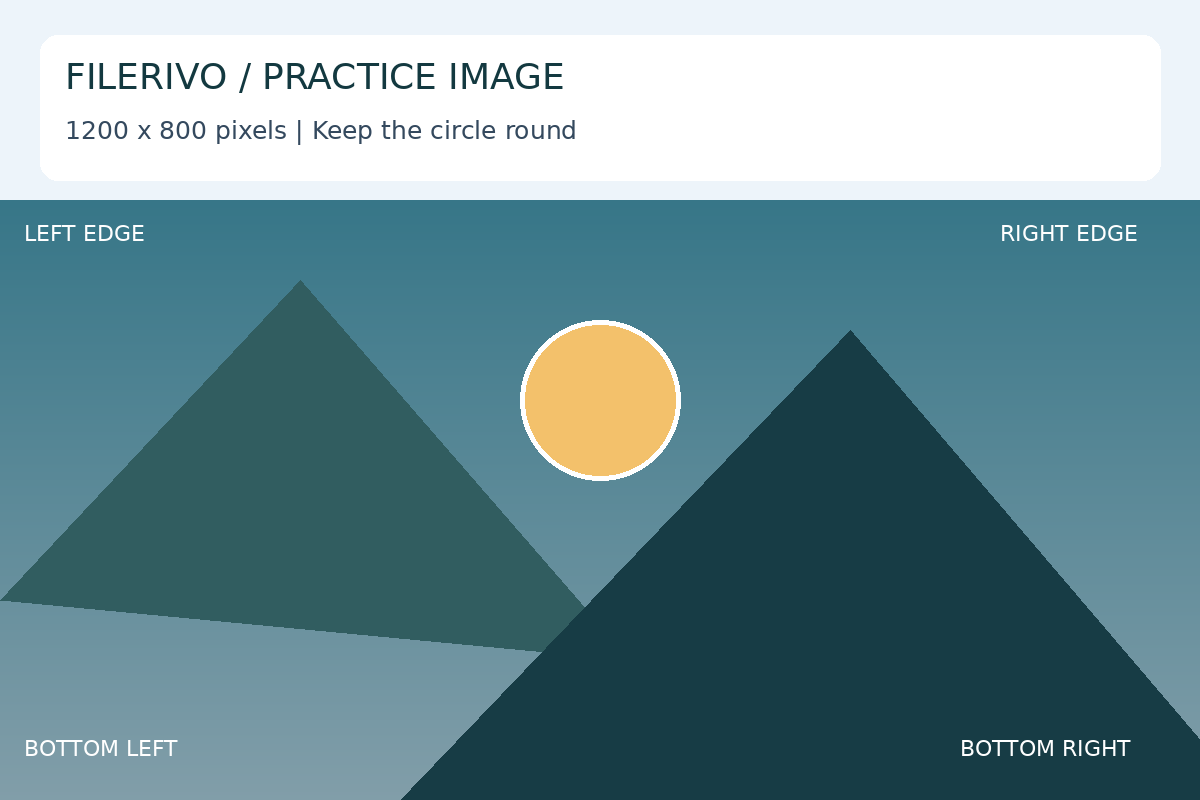
Filerivo-created demonstration files. No real personal or customer data. Settings below are a recipe, not an automatic preset.
- Open Advanced PDF page layout and select A4, portrait, 36 pt margins, and Fit.
- Load the preview and enable advanced page layout for download.
- Choose Apply, Preview, then Download the PDF and open it in a PDF viewer.
- Expected result
- One A4 portrait page with the full landscape image inside the margins. Unused white space is expected.
- Check before sharing
- Confirm that all four corner labels remain visible. Add more images to create one page per image in file-list order.
Prepare and check your result
Choose Apply after selecting files and setting options. Preview inspects that prepared result; Download saves the same generated file. Apply again after changing files or settings. Keep your original and open important downloads in their intended application.
Tool-specific controls
Advanced layout applies the same paper size, orientation, margins, Fit or Fill placement, rotation, and background to every image in the selected order. Choose Preview image to inspect each layout.
A4 and US Letter produce standard paper pages; Image size + margins uses image pixels as PDF points plus the margins. Load or refresh the page preview and enable Use advanced page layout for download. Inspect every output page, especially cropped edges in Fill mode.
Limitations
Quick mode uses image pixel dimensions as PDF page points. Advanced mode supports A4, Letter, or image-size pages plus margins, up to 100 images, and 25 million pixels per image. Margins use points (72 points = 1 inch). Rotating JPGs re-encodes them at 92% quality. Fill clips overflowing image edges. WebP is not accepted here. Images do not become editable or searchable text; use OCR if you need recognized English text.
Troubleshooting
Edges disappeared
Fill clips overflow. Choose Fit when the whole image must remain visible.
The PDF has an unusual paper size
Quick mode uses image pixels as page points. Choose A4 or Letter in advanced layout for standard paper.
I cannot search the words in the image
Embedding an image does not recognize its text. Run English OCR if searchable text is needed.
Still stuck? Keep the original and note the tool, file type, approximate size and error message. Contact Filerivo with those details; do not email confidential files.