
PDF to images
Preview selected PDF pages as JPG, PNG, or WebP images.
Advanced options · choose a file to unlock
Turn selected PDF pages into shareable images
Select only the pages you need, choose a format and resolution, and inspect the encoded output before exporting.
One exported page downloads as an image; multiple pages arrive in a ZIP. More resolution increases pixel dimensions and can increase size, but cannot restore detail missing from the source.
How to use PDF to images
- Choose one PDF. Quick export renders every page as JPG.
- Open Advanced page image export and select Load export preview.
- Enter the pages to export, choose a format, resolution, quality, and page background. Use Preview page to inspect a source page.
- Enable Use advanced export settings, then choose Apply, Preview, and Download. One page downloads as an image; several download in a ZIP.
Export a single checklist page
Use the practice PDF and export its second page.
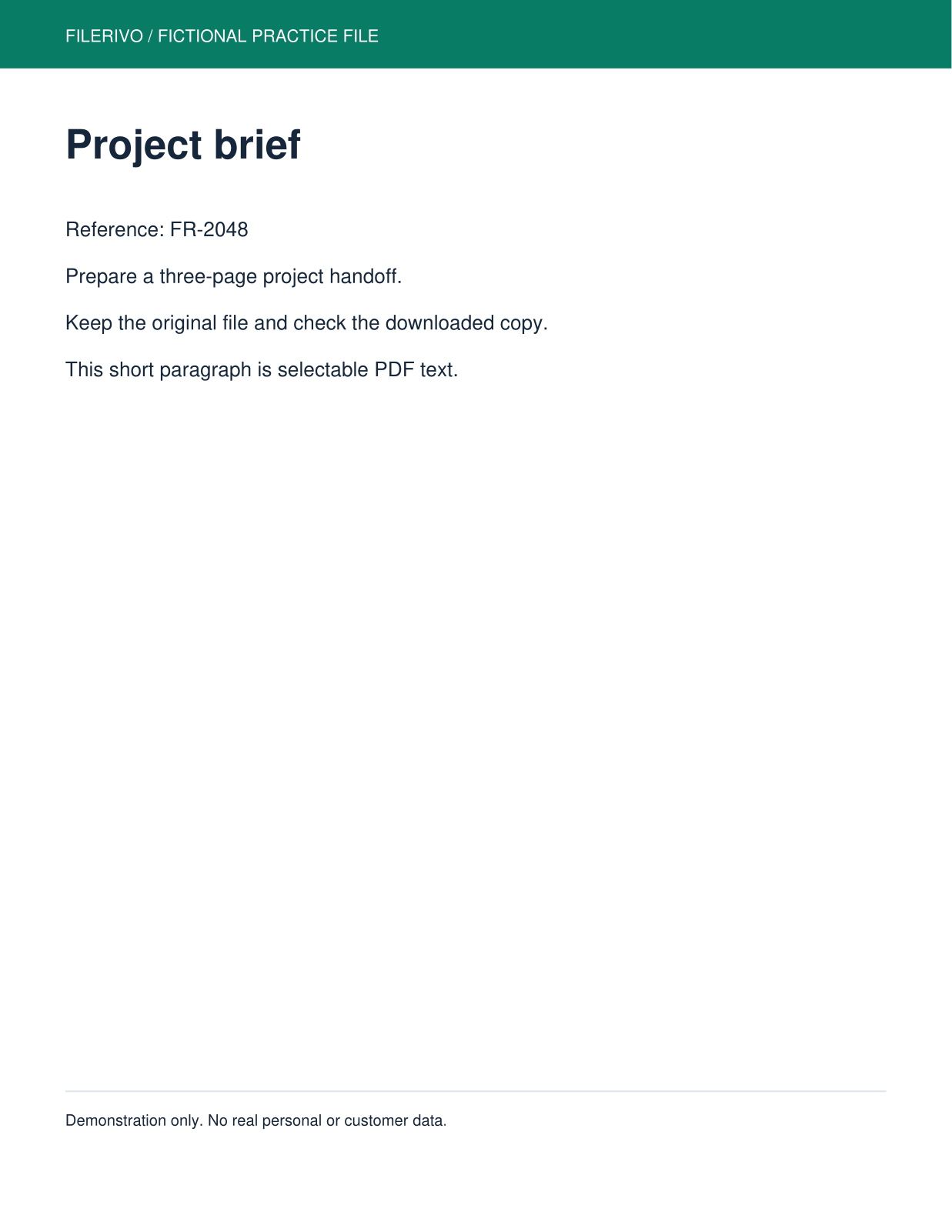
Filerivo-created demonstration files. No real personal or customer data. Settings below are a recipe, not an automatic preset.
- Load Advanced page image export and enter Pages: 2.
- Choose PNG at 144 DPI and enable advanced export settings.
- Choose Apply, Preview, then Download and inspect the saved image.
- Expected result
- One PNG representing the Review checklist. Exporting multiple selected pages creates a ZIP.
- Check before sharing
- Confirm that the image contains the second-page heading. Source PDFs can have different page sizes, so pixel dimensions vary.
Prepare and check your result
Choose Apply after selecting files and setting options. Preview inspects that prepared result; Download saves the same generated file. Apply again after changing files or settings. Keep your original and open important downloads in their intended application.
Tool-specific controls
Choose JPG, PNG, or WebP and 72, 144, 216, or 300 DPI. Quality applies to lossy formats; PNG disables the slider. Set the page background and inspect the actual encoded image with its pixel dimensions and byte size.
Pages controls the download selection. Preview page only chooses the page you inspect and may be outside that selection. Enable advanced export settings and check the final files at their intended viewing size.
Limitations
Advanced export supports at most 100 selected pages, 10,000 pixels per side, and 25 million pixels per image. PNG encoding is lossless, but exporting a PDF as pixels still removes selectable text, links, and forms. Higher resolution cannot recover missing scan detail. JPG and WebP quality can affect size and clarity. Preview page does not select a page for export. Keep the original PDF.
Troubleshooting
The wrong page downloaded
Preview page only chooses what you inspect. Pages chooses what is exported.
Fine print is soft
Try 216 or 300 DPI within the pixel limits. Higher DPI cannot recover detail absent from a scan.
Links and text selection are gone
The output is an image. Keep the PDF when interactive links or selectable text are needed.
Still stuck? Keep the original and note the tool, file type, approximate size and error message. Contact Filerivo with those details; do not email confidential files.