
PDF to text
Save selectable PDF text in a simple TXT file.
Select OCR for image-only scans. Check the recognized words before sharing.
Advanced options · choose a file to unlock
Extract the PDF text you actually need
Choose the relevant pages and review the extracted reading order before downloading a text file for notes or further editing.
TXT does not preserve the original images, tables or layout. Scanned PDFs need OCR. Proofread names, numbers and line breaks against the original document.
How to use PDF to text
- Choose one PDF in PDF to text. Quick extraction reads selectable text from every page; its English OCR option reads scans.
- For an editable result, open Advanced text review editor. Enter pages such as 2-4, 7, choose selectable text or English OCR within the editor, then extract and review text.
- Compare the text with each original page. Edit it, join single line breaks, clean trailing spaces and extra blank lines, restore extracted text, or undo the last helper.
- Choose blank-line, page-break-marker, or form-feed separators; select LF or CRLF line endings and optional original source-page headings. Check the read-only TXT export preview.
- Enable Download reviewed TXT instead of quick extraction and choose Apply, Preview, then Download. Save edits before switching files or tools. Clear edits and extract again discards the review so you can change the page selection or extraction mode.
Create traceable notes from selected pages
Use the practice PDF and select pages 2–3.
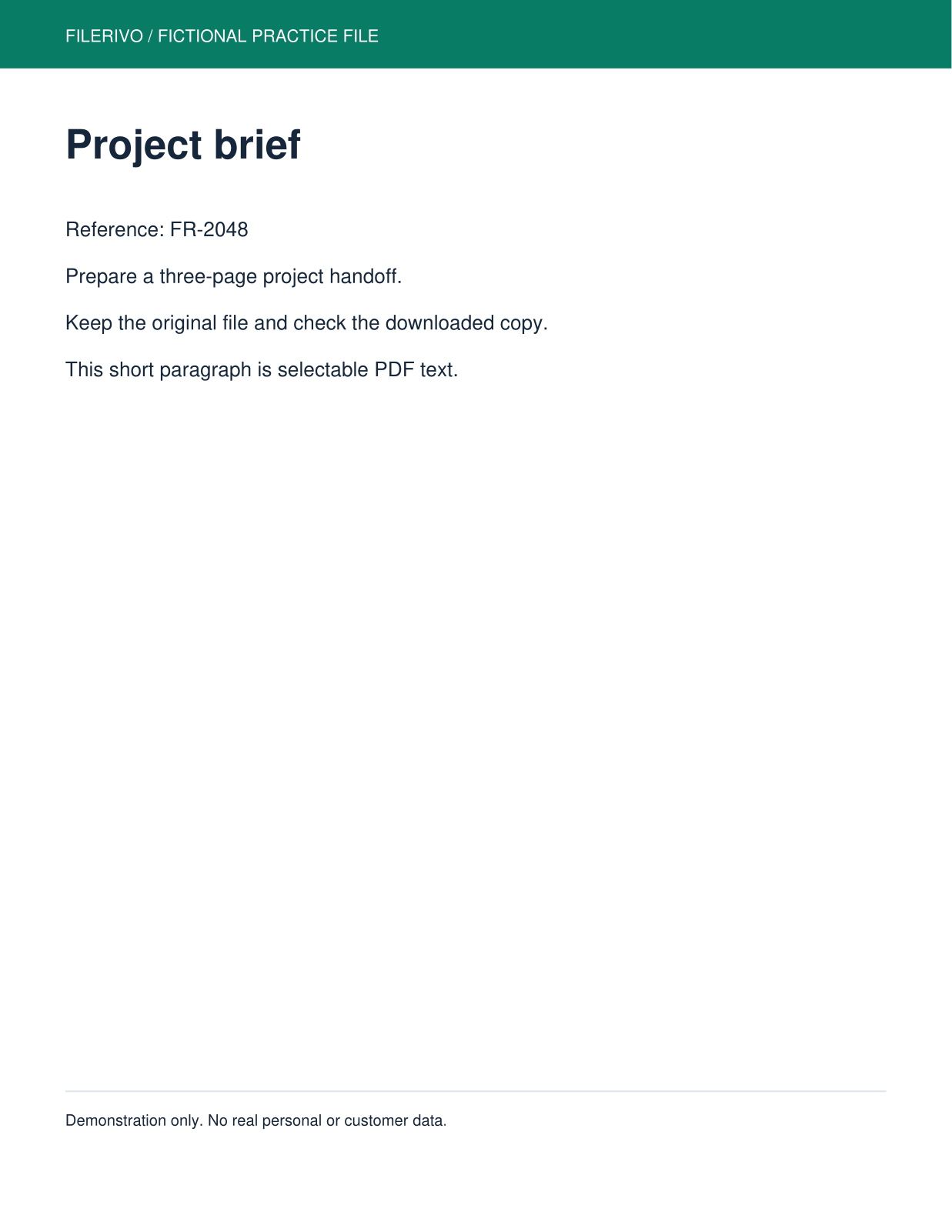
Filerivo-created demonstration files. No real personal or customer data. Settings below are a recipe, not an automatic preset.
- Open Advanced text review editor, enter 2-3 and choose selectable text.
- Extract, compare each page, and turn on original source-page headings.
- Choose blank-line separators and LF endings; enable reviewed TXT and choose Apply, Preview, then Download.
- Expected result
- A UTF-8 TXT file with the checklist and handoff text, separated by source-page headings.
- Check before sharing
- Read the saved file and confirm the reference code and checklist entries against the PDF.
Prepare and check your result
Choose Apply after selecting files and setting options. Preview inspects that prepared result; Download saves the same generated file. Apply again after changing files or settings. Keep your original and open important downloads in their intended application.
Tool-specific controls
The advanced editor has its own page selection and extraction mode. Extract first, correct each source page's text, and use Join single line breaks or whitespace cleanup only when it improves that text. Restore extracted text discards that page's corrections; Undo last helper reverses the helper action.
Separators, source-page headings, and LF or CRLF endings shape the TXT export. The read-only export preview shows the assembled text. Enable Download reviewed TXT instead of quick extraction; changes to the source selection require Clear edits and extract again.
Limitations
Plain text does not reproduce tables, images, columns, or exact layout. Reading order and line breaks can be imperfect. Advanced review supports PDFs up to 100 pages; English OCR supports up to 30 selected pages. Selection order is preserved. Review supports 100,000 characters per page and 1,000,000 total. Output is UTF-8. A form-feed character is a nonprinting page separator, not a visible divider in every editor. LF and CRLF affect the saved file; the preview displays normal line breaks. Source headings use original PDF page positions, which can differ from printed page numbers. OCR can misread names and numbers; proofread the download.
Troubleshooting
Lines are broken mid-sentence
Try Join single line breaks, then check lists and headings so unrelated lines are not joined.
The text is in the wrong order
Columns and unusual PDF positioning can affect extraction order. Correct the reviewed text before export.
Page labels look wrong
Source headings use PDF positions, not printed page numbers. Keep that distinction when citing the document.
Still stuck? Keep the original and note the tool, file type, approximate size and error message. Contact Filerivo with those details; do not email confidential files.