
Edit PDF Text, Recognize Scans and Wrap Images
Try a heading correction, review whole-page English OCR, and wrap an image using current desktop and mobile controls.
Updated November 21, 2026 · instructions, sample example and troubleshooting reviewed.
A selectable paragraph, a scanned page and an inserted image need different controls. This walkthrough uses Filerivo’s current PDF editor to make a small correction, review English OCR and place an image without losing surrounding text. Keep the original and inspect the downloaded copy.
Try it: change Project brief to Project notes
Open the editor and choose Try a sample PDF, or download the fictional three-page practice PDF and open it. Page 1 starts with Project brief; pages 2 and 3 contain Review checklist and Final handoff. The intended result is a three-page copy with only the first heading changed.
- On desktop choose Edit PDF. On mobile open More → Edit PDF text. Select the supported Project brief heading.
- Replace the heading with Project notes. Place the cursor inside a paragraph to insert wording, or select a smaller range to replace it. Finish the edit. Replacement fonts can change spacing, so check that the full heading fits.
- Choose Apply → Preview in the document bar. Check all three pages: Project notes first, Review checklist second, Final handoff third.
- Choose Download, open the saved copy and compare it with the original. Check the headings, page count and text near the correction. If you make another change, Apply again before reviewing and downloading.
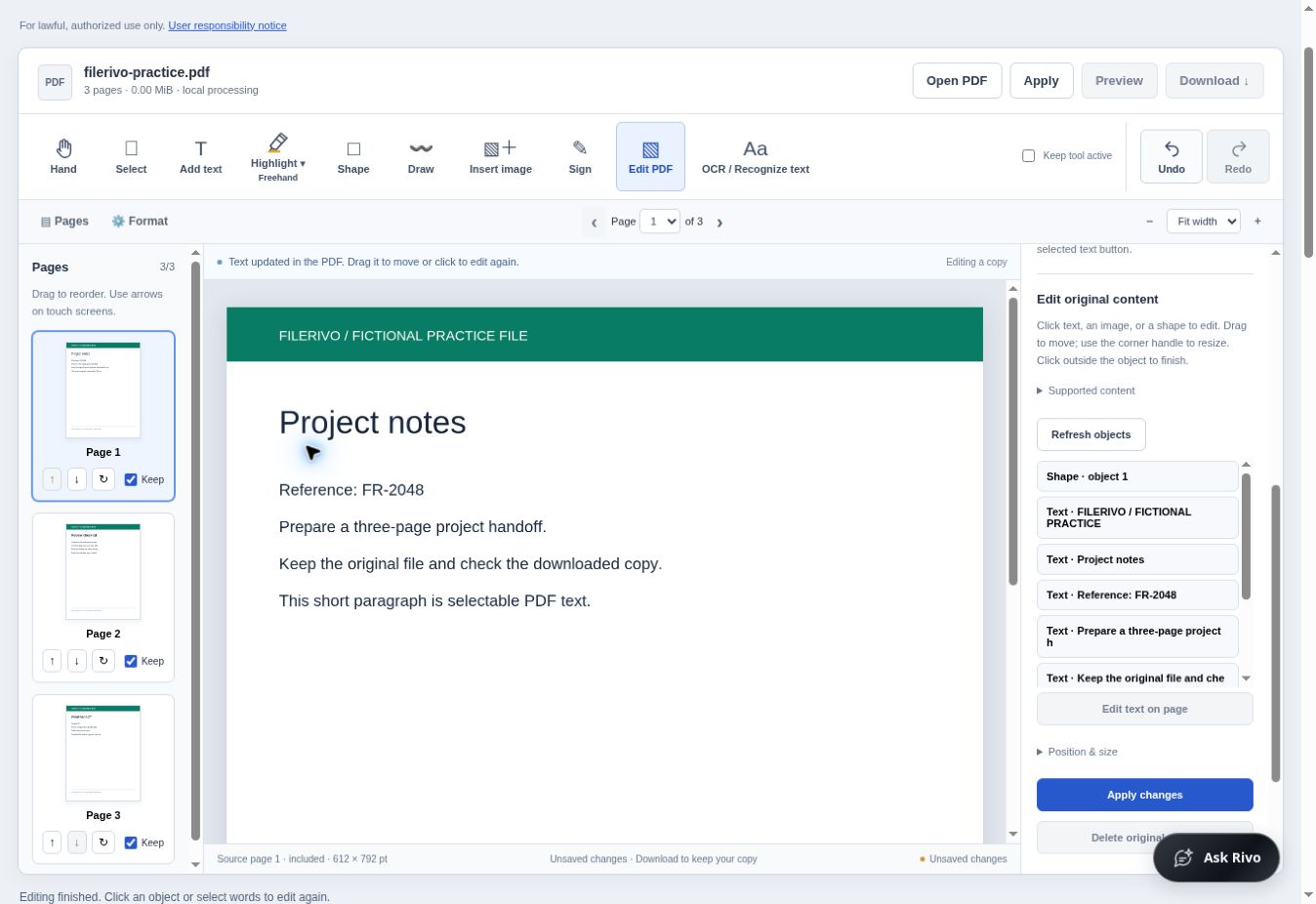
Use Format text for emphasis, lists, alignment and spacing. Selected words can receive their own formatting; advanced formatting may turn original text into an editable replacement. Undo lets you return to the original. This example is a recipe, not a preset or a promise that every PDF font can be reproduced.
Recognize a page or one area
If text cannot be selected, it may be part of a scan or unsupported PDF content. To practice separately, download the fictional English practice scan PDF. It contains Delivery note, reference FR-2048 and quantity 12. Finish and download your heading correction before opening a different file.
- Choose OCR / Recognize text; on mobile find it under More.
- Choose Current page for this scan. All included pages processes included pages in a larger document. The optional Skip pages that already contain selectable text checkbox starts unchecked. Leave it off when you need scanned text on a mixed page recognized too. Pages with existing edits are skipped.
- Choose Recognize text. Compare each detected text area with the source. Correct FR-2048 and 12 character by character if needed. Exclude unwanted areas and check the size and background before applying the reviewed text.
- Choose Apply, inspect Preview and download. Check that the wording is readable and editable in the result. OCR may misread even a clear scan; never assume names, amounts or reference codes are correct.
For just one paragraph, choose Select an area instead. Selected-area recognition also offers Repair from surroundings: preview and compare the estimated background before applying. A plain background is easier to reconstruct than a photograph. The standalone OCR tool is useful when you want TXT, Word or a searchable PDF rather than a visible text replacement in the editor.
Place an image and let supported text flow around it
Open a fresh copy of the practice document and use Insert image (mobile: Image) to add the fictional practice PNG. Start with a small image beside the paragraph on page 1, leaving enough width for complete words.
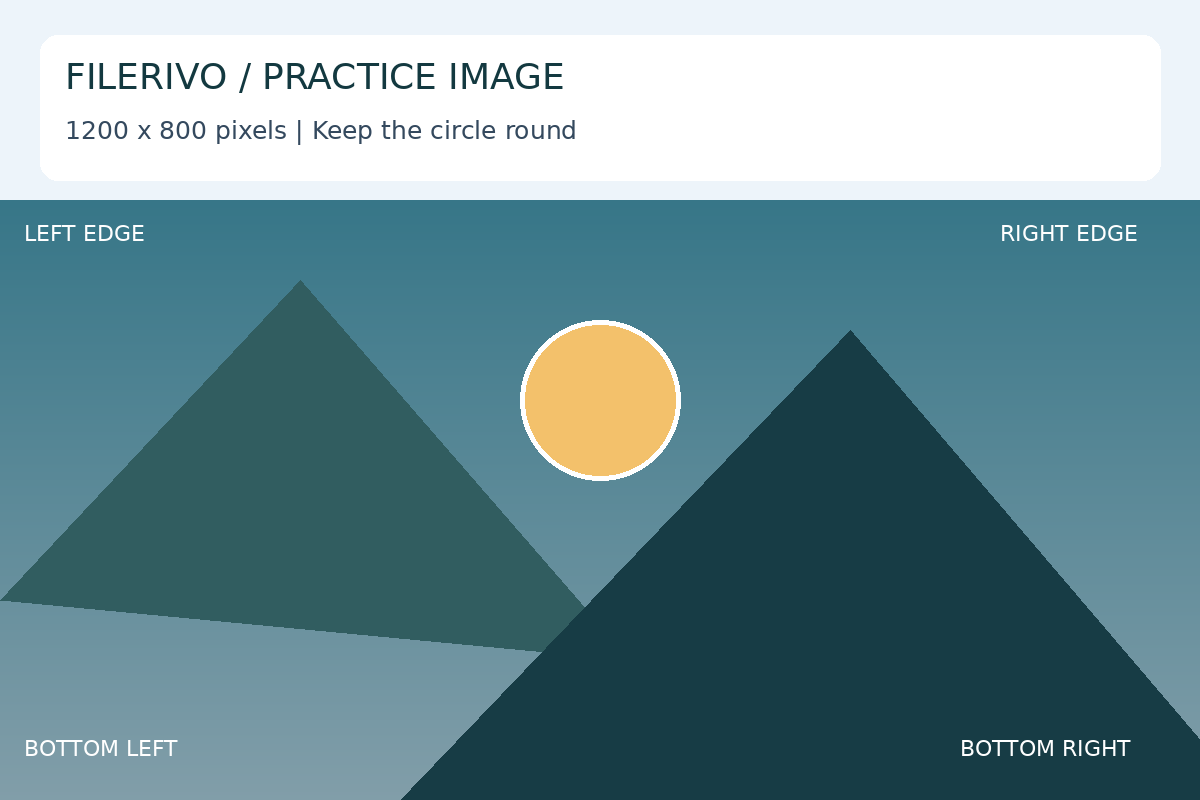
- Select the image. On mobile choose Wrap in its action strip. On desktop open its context menu and choose Wrap text around image.
- Move and resize the image. Supported upright text reflows with a 6 pt margin. Narrow strips are skipped to avoid splitting words. Supported following paragraphs, headings and dividers move together where page space permits.
- Check the last lines, nearby headings, divider positions and footer. If the move cannot fit, the editor retains the last valid layout. Make the image smaller or move it into a wider area. Text does not automatically continue onto another page.
- Use Front or Behind for layering. Behind keeps the inserted image above page backgrounds and scans while placing it behind foreground content. Turn wrapping off if you want full-width text again.
- Apply, inspect every affected page in Preview, then Download and open the copy. Check the actual file, not only the selected image outline.
A scanned paragraph must first be recognized before it can reflow. Complex PDF groups, rotated text and unrelated graphics may not participate. If the layout is crowded, keeping the image beside a shorter paragraph or on a separate page can be more readable.
When an edit needs more room
- Text fits at the end but an insertion in the middle fails
- Inserting words changes line breaks. A paragraph can become taller even when only a few characters were added. Shorten the wording, reduce the size or enlarge the supported box; inspect the next paragraph and footer before applying.
- A wrap move is rejected
- The remaining text area may be too narrow or too short. Keep the last valid layout, shrink or reposition the image and try again. This is page-level layout, not whole-document reflow.
- A page was skipped during OCR
- Check whether it is included, whether it has existing edits, and whether Skip pages that already contain selectable text is enabled. Use Select an area instead when you only need a precise replacement.
- The preview contains an earlier edit
- Finish the current edit and choose Apply again. Preview and Download use the prepared result.
Keep a copy you can verify
The editor accepts unprotected PDFs up to 50 MiB and 100 pages. English OCR, replacement fonts and browser memory have practical limits. Export can change document features such as forms, bookmarks, accessibility structure or existing digital signatures. A typed signature is a visible mark, not a verified digital signature.
Covers, repairs, highlights and shapes leave original content underneath and are not secure redaction. Use an appropriate redaction process for confidential content. Download before refreshing or leaving the editor, and keep your source file.
For the complete control reference, see the PDF editor guide. For a finishing checklist, read Prepare a PDF before sharing.